

Add your AI support agent to your Unbounce website
In SiteSpeakAI
Select your chatbot from the dropdown menu at the top, click on the Install Agent section in the sidebar, then click on the Copy Code button to copy your code snippet.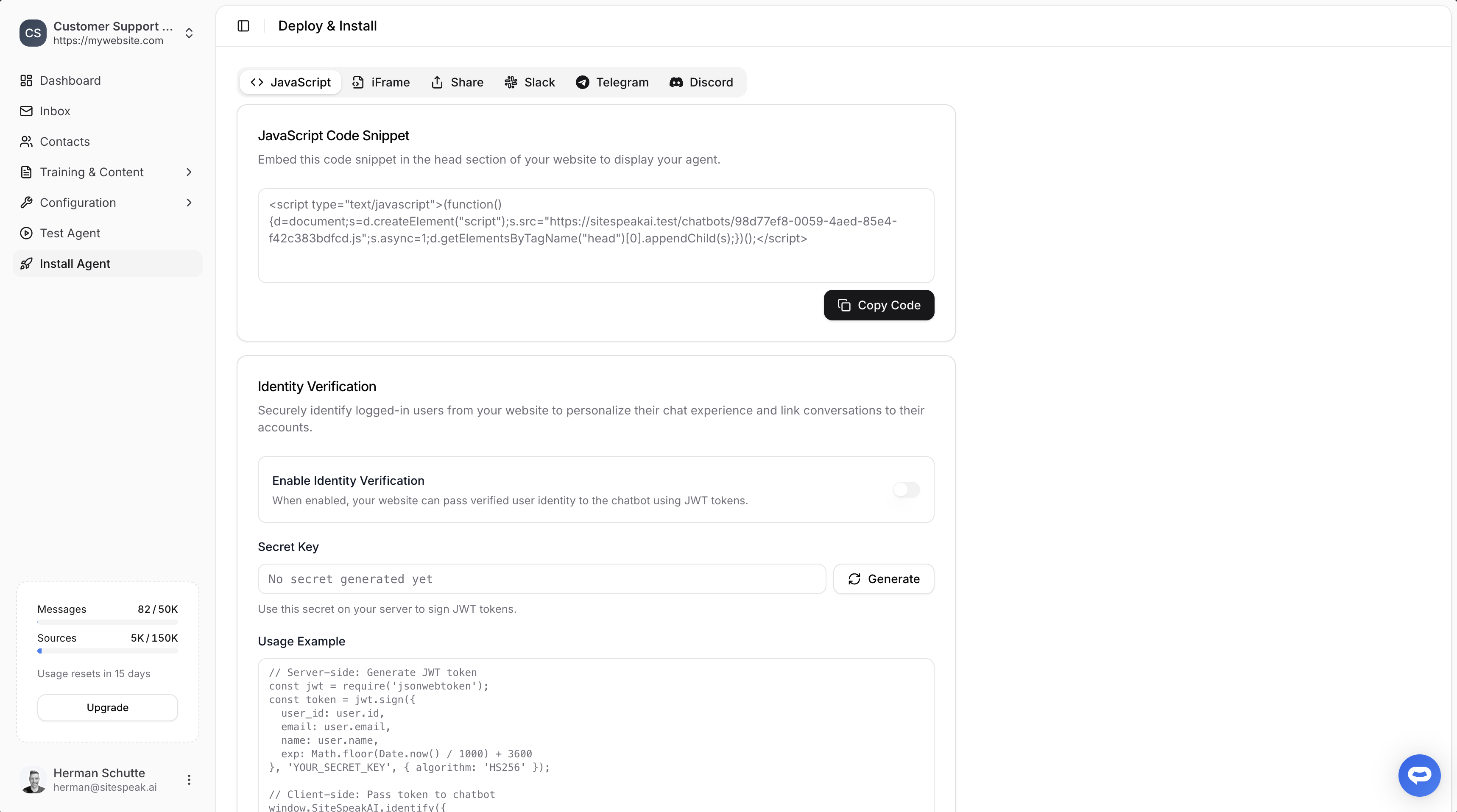
In Unbounce
-
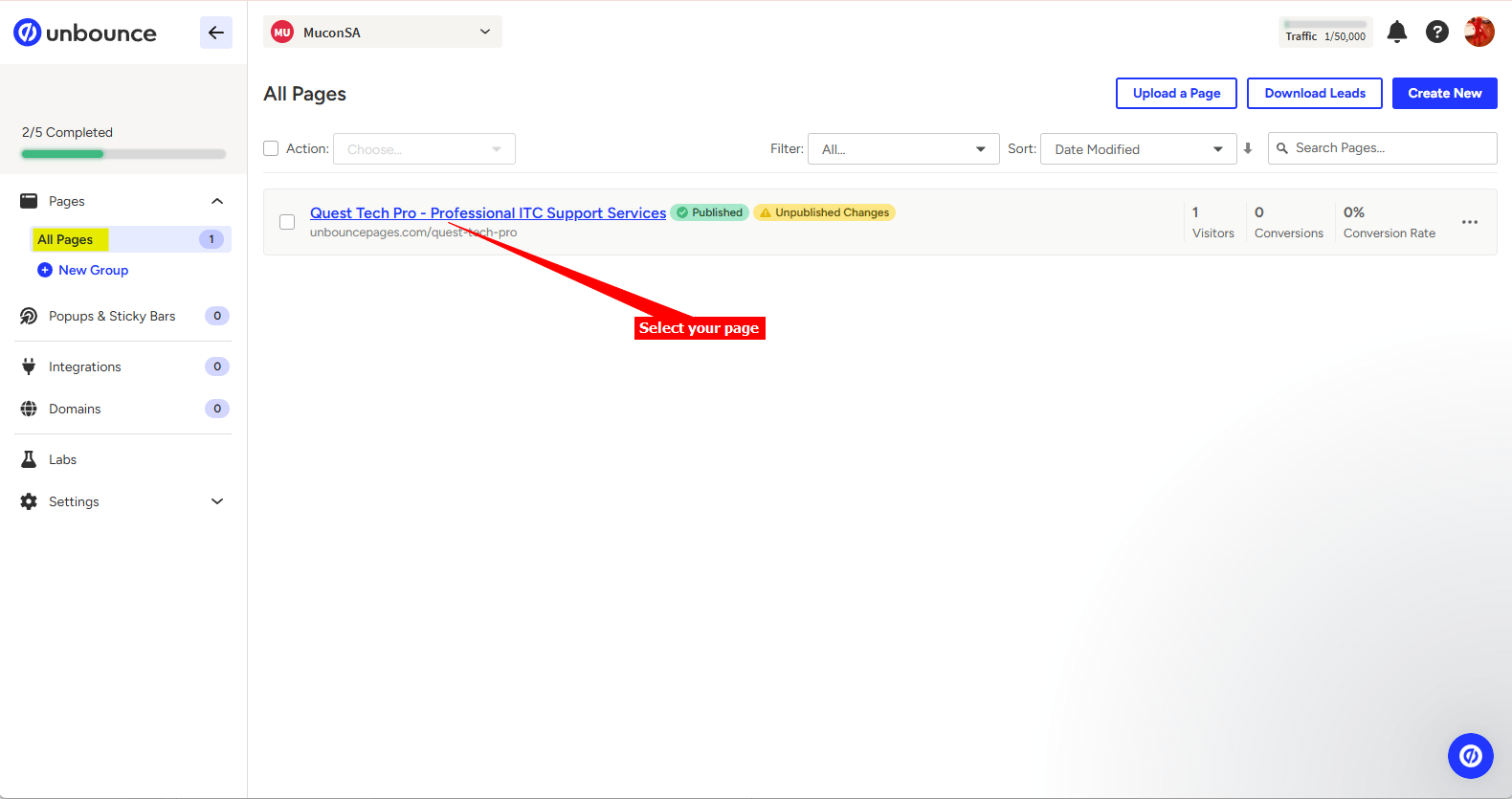
Log into your Unbounce account and on your dashboard, select the page you want to add your AI support agent to
-
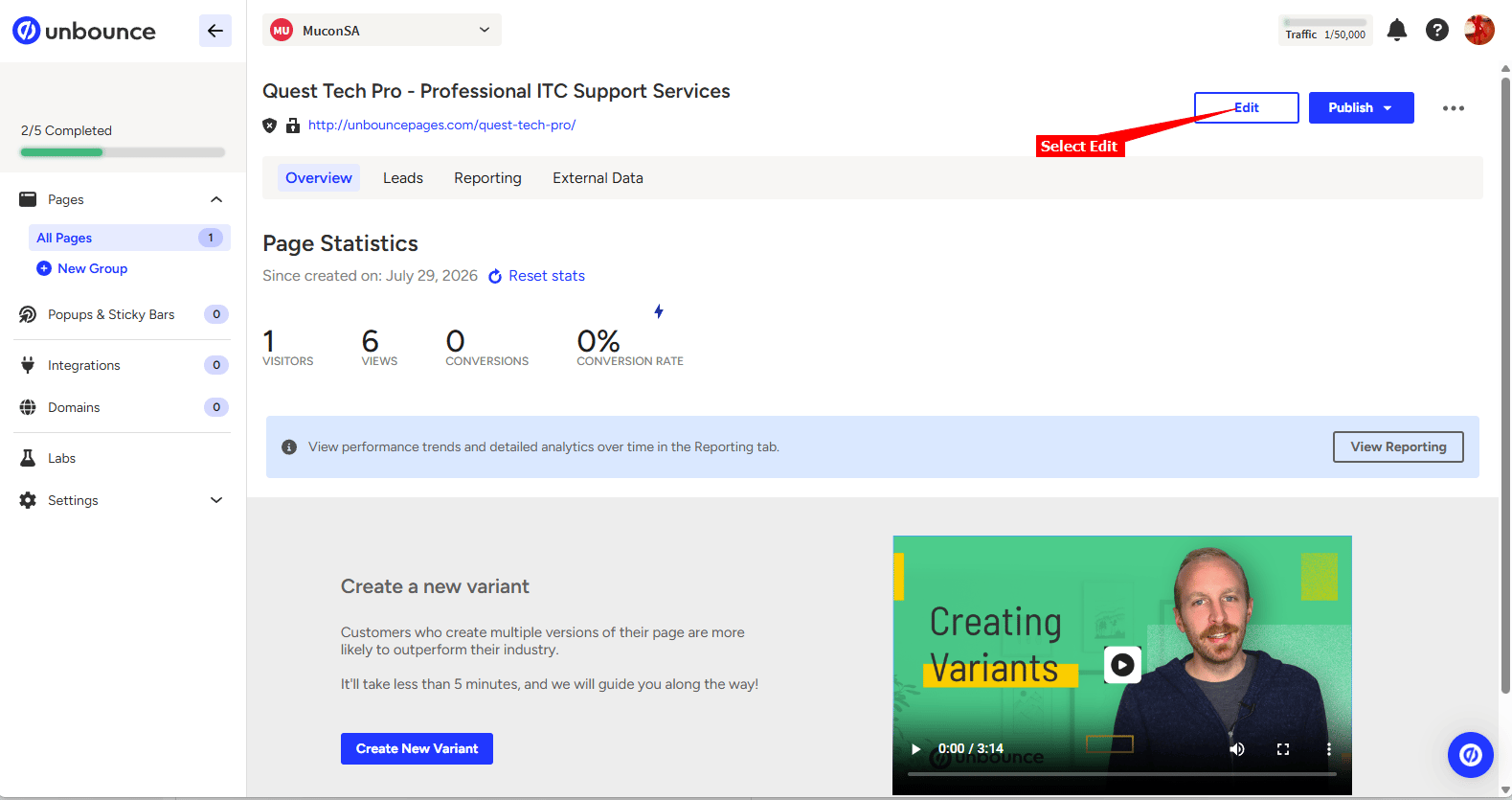
On the next screen, select Edit to start editing your page
-
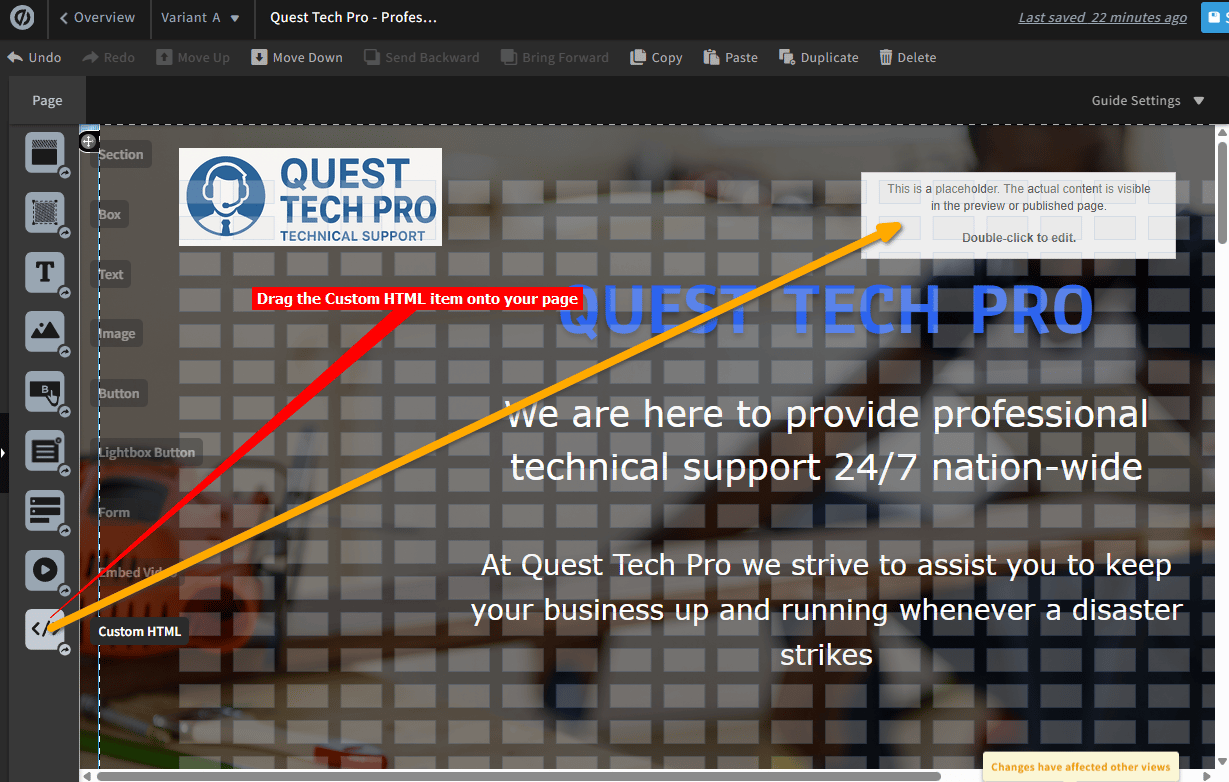
Drag the Custom HTML item onto your page (you can place it anywhere, it won’t display above other sections, it will display at the right hand bottom of the page)
-
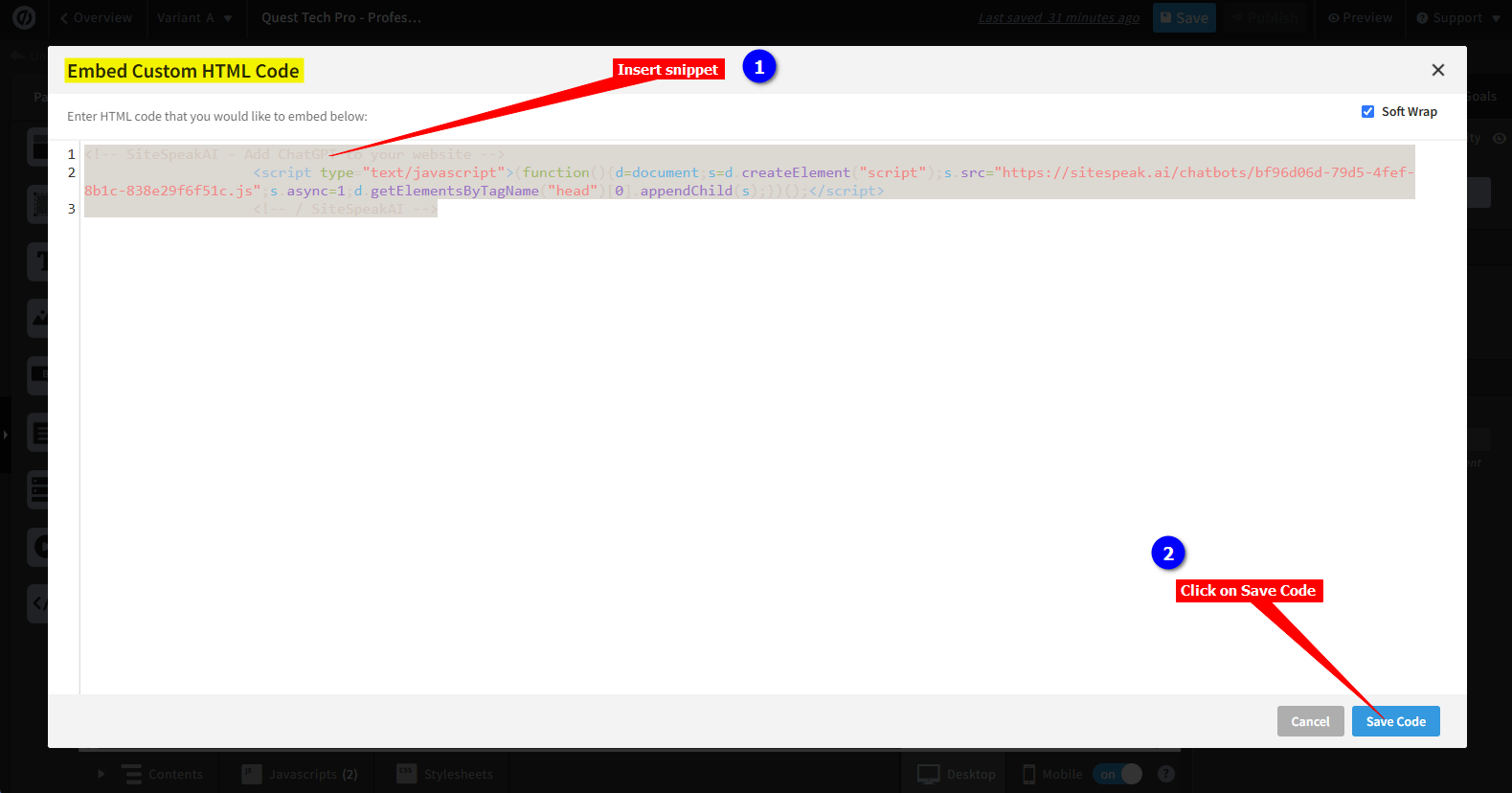
Double-click on the Custom HTML placeholder, insert your snippet code in the Embed Custom HTML Code box and click on Save Code
-
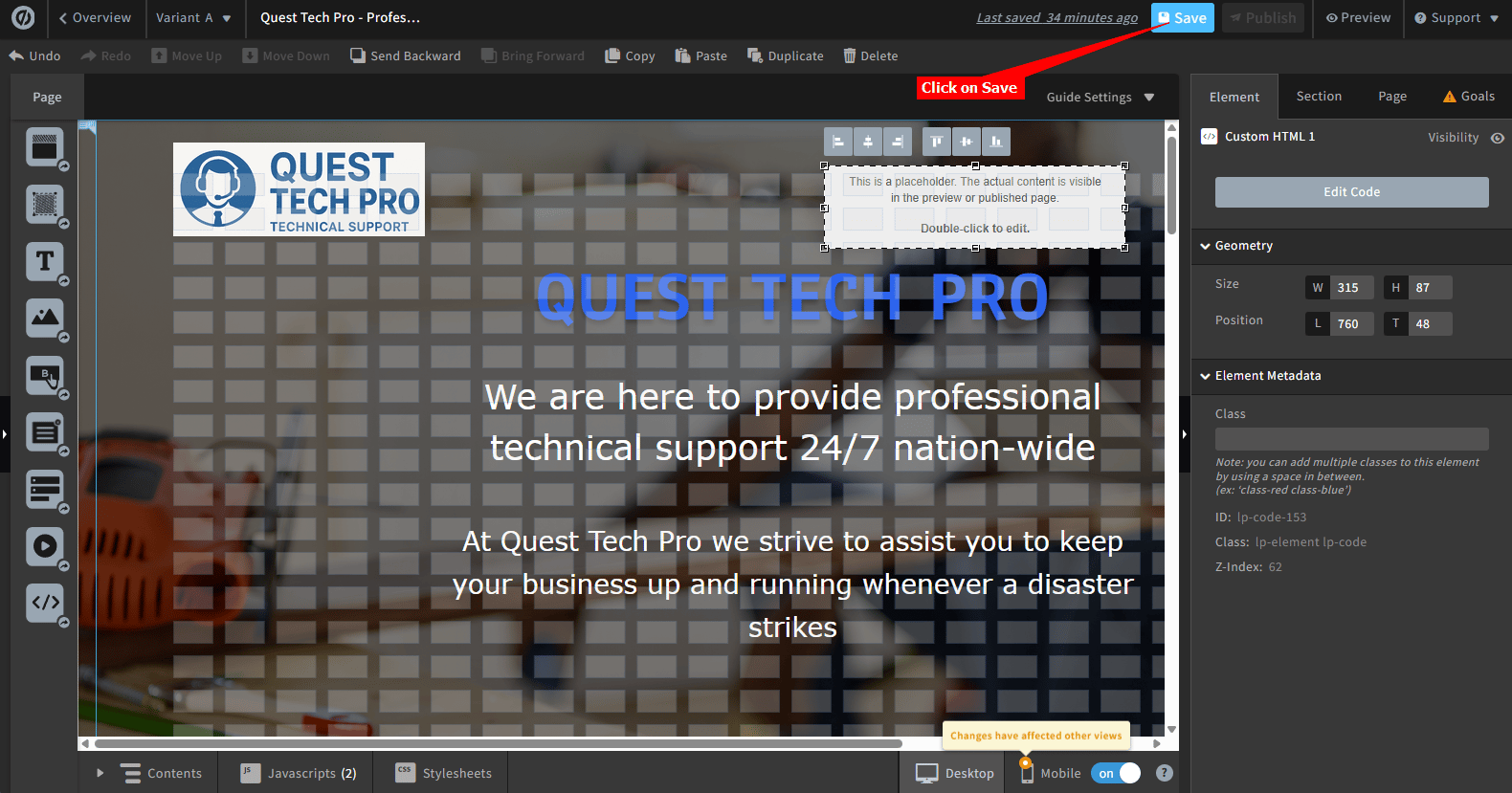
Click on Save to save your changes in the editor
-
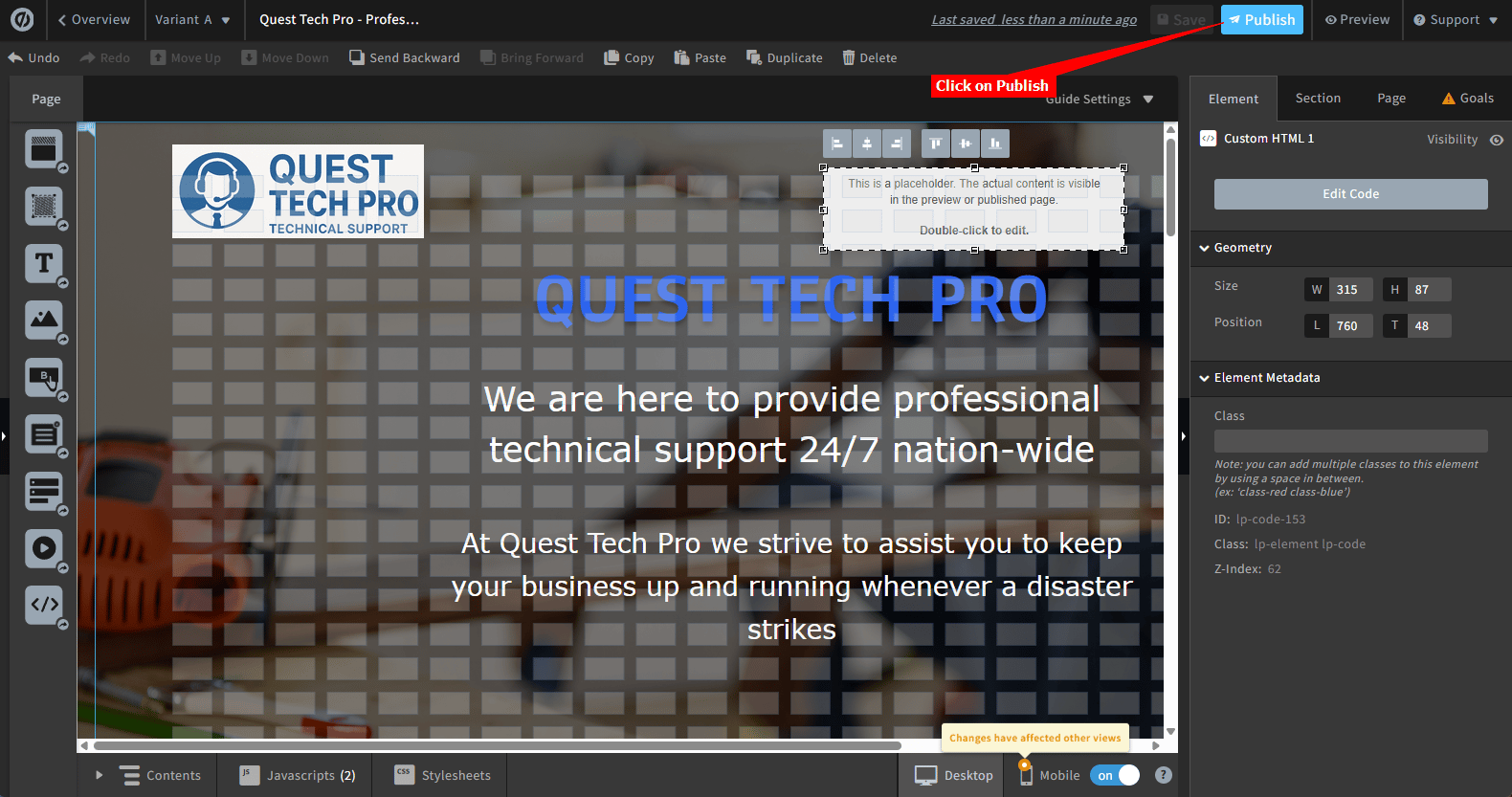
Click on Publish to publish your page
-
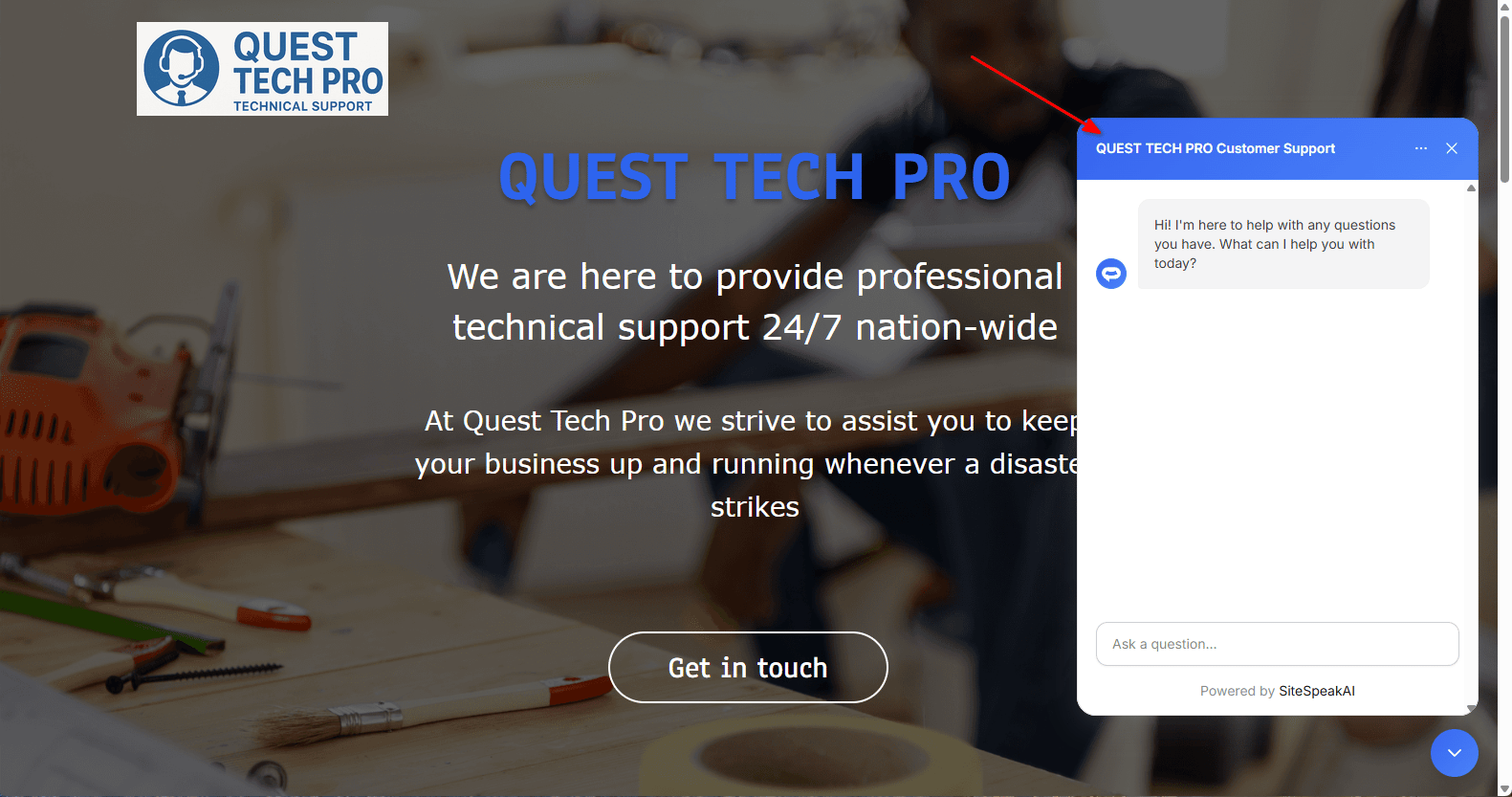
Your AI support agent button will now be displayed on your Unbounce website page

-
If you click on the button it will display the AI support agent dialogue
Ready to automate your customer service with AI?
Join over 1000+ businesses, websites and startups automating their customer service and other tasks with a custom trained AI agent.