

Add your AI support agent to your Photler website
In SiteSpeakAI
Select your chatbot from the dropdown menu at the top, click on the Install Agent section in the sidebar, then click on the Copy Code button to copy your code snippet.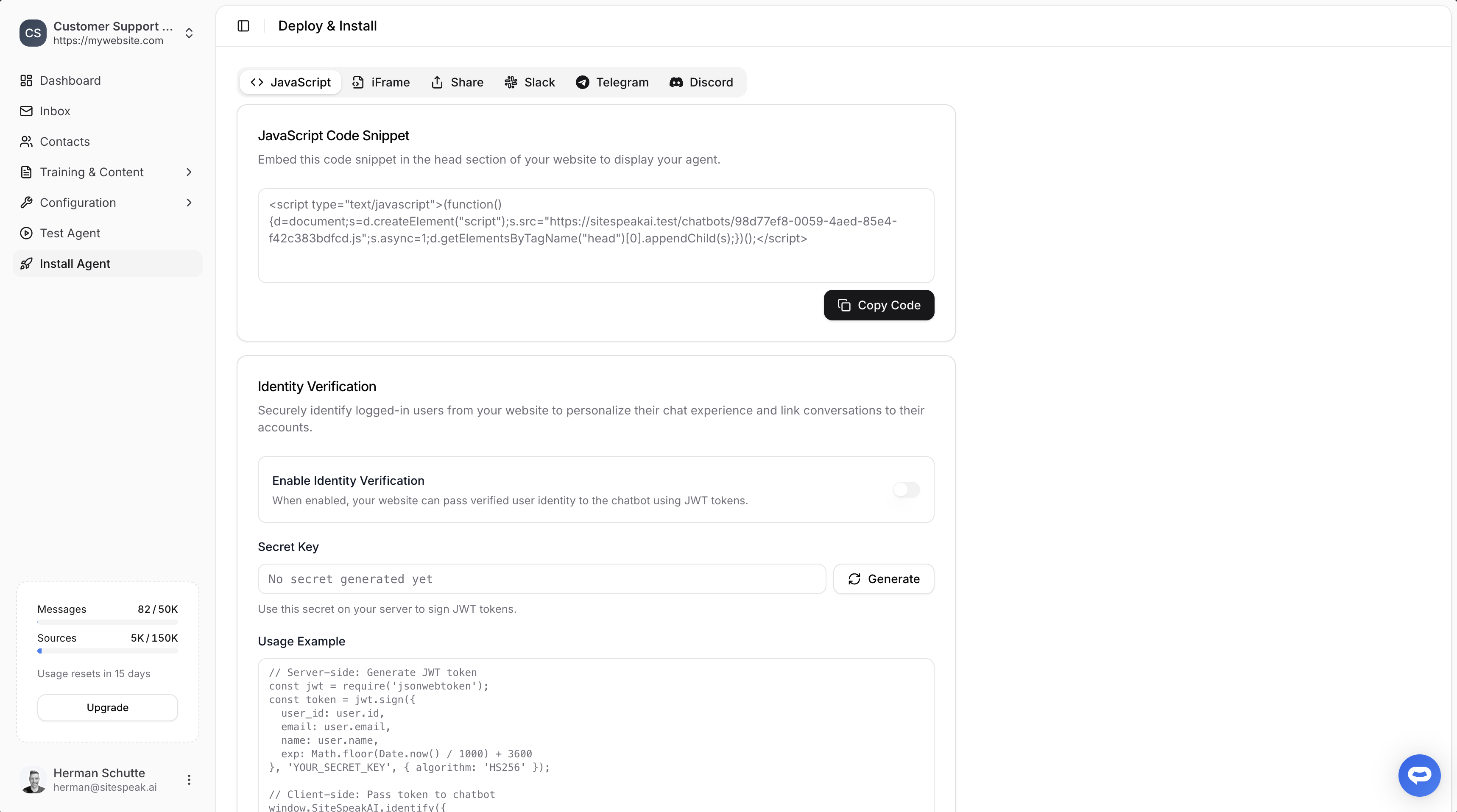
In Photler
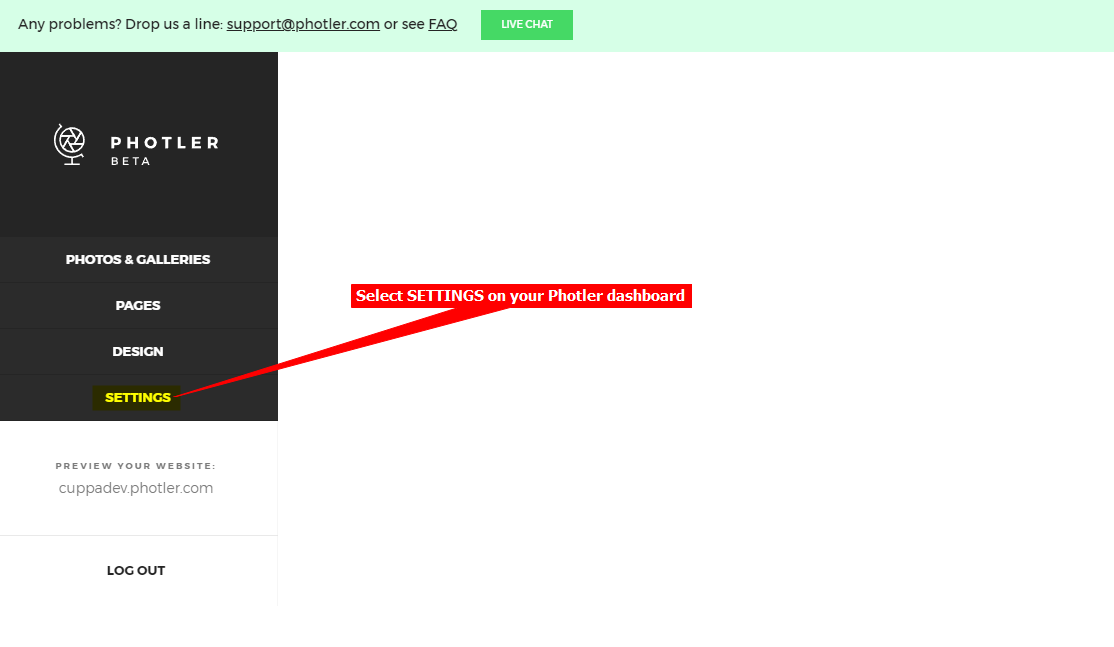
- Log into your Photler website and on your dashboard, select SETTINGS on the left sidebar.
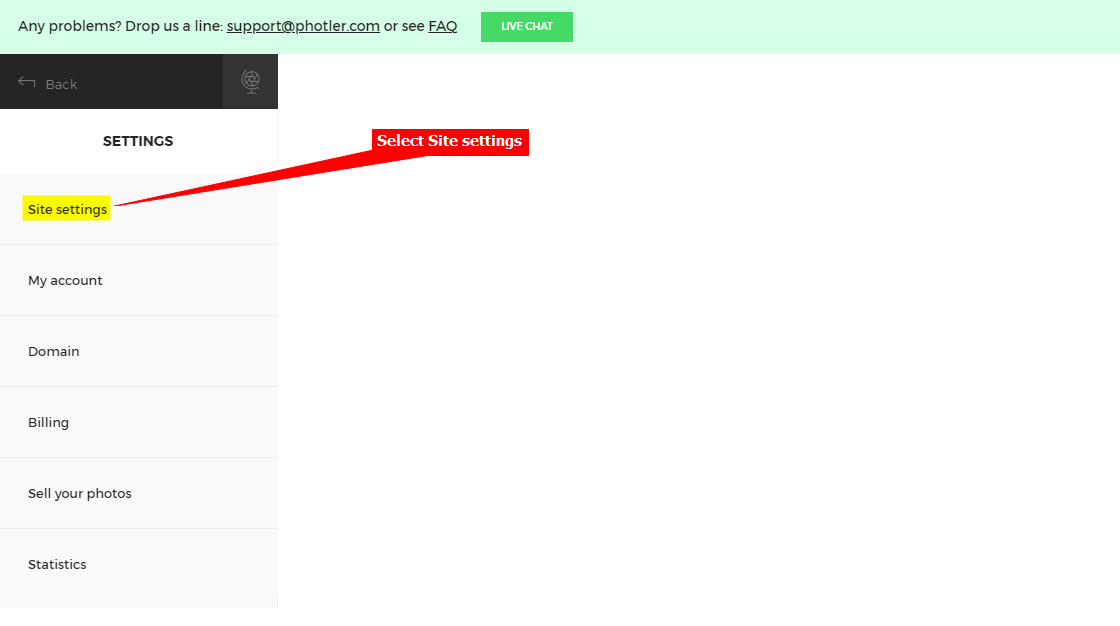
- Select Site settings.
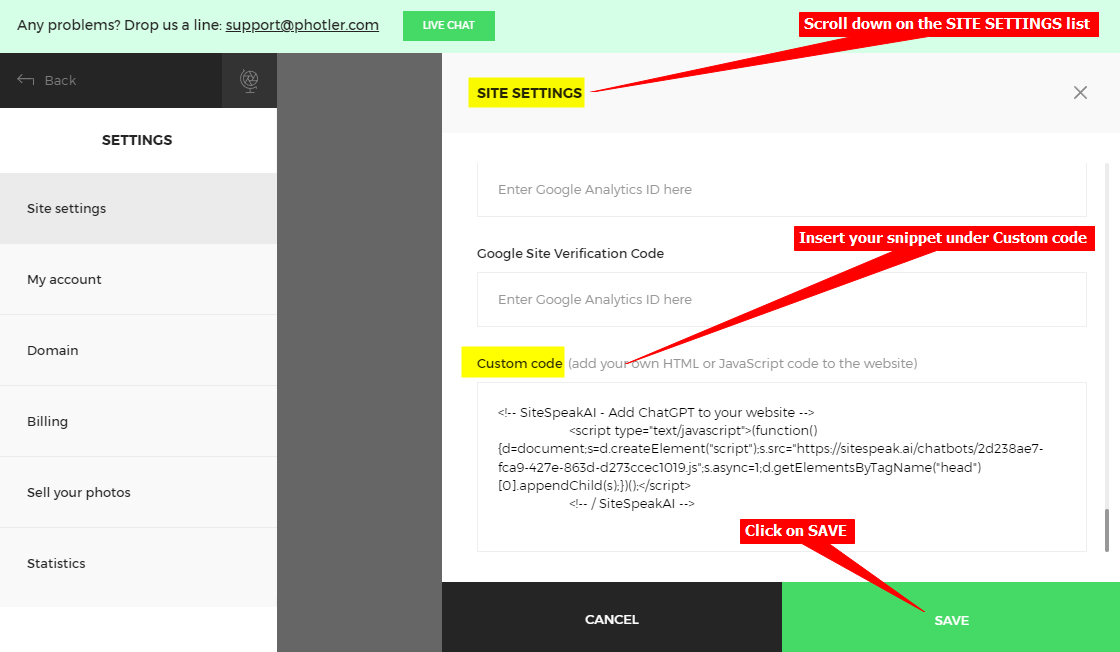
- Scroll down on the SITE SETTINGS list and insert your snippet under Custom code. Click on SAVE when done.
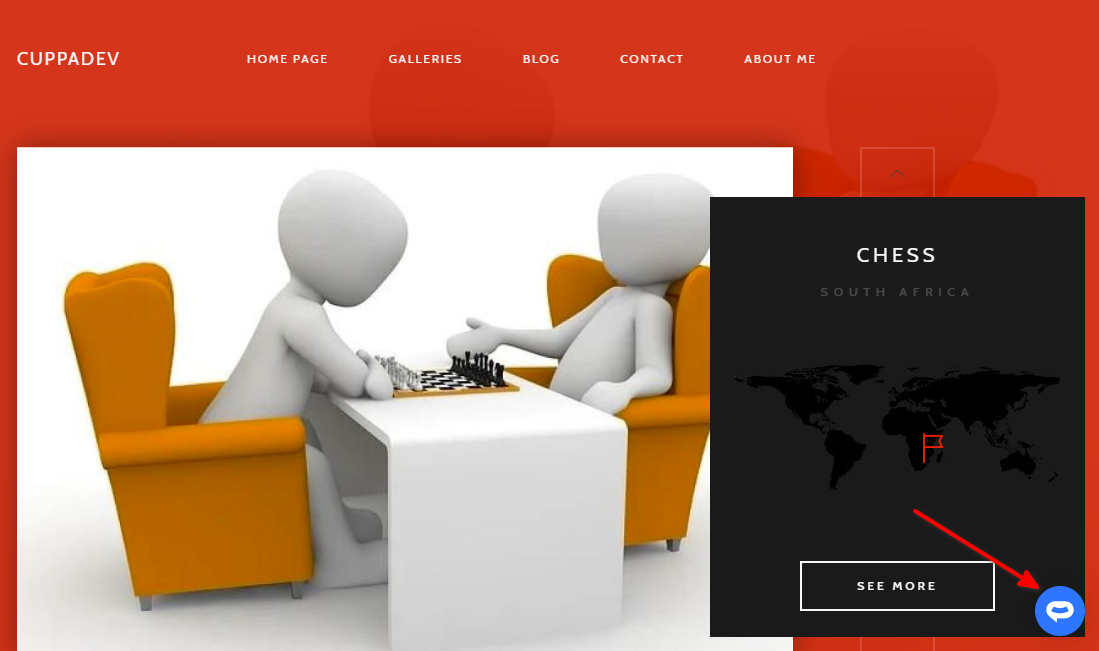
- Your AI support agent button will now be displayed on your Photler website.
- If you click on the button it will display your AI support agent dialogue.
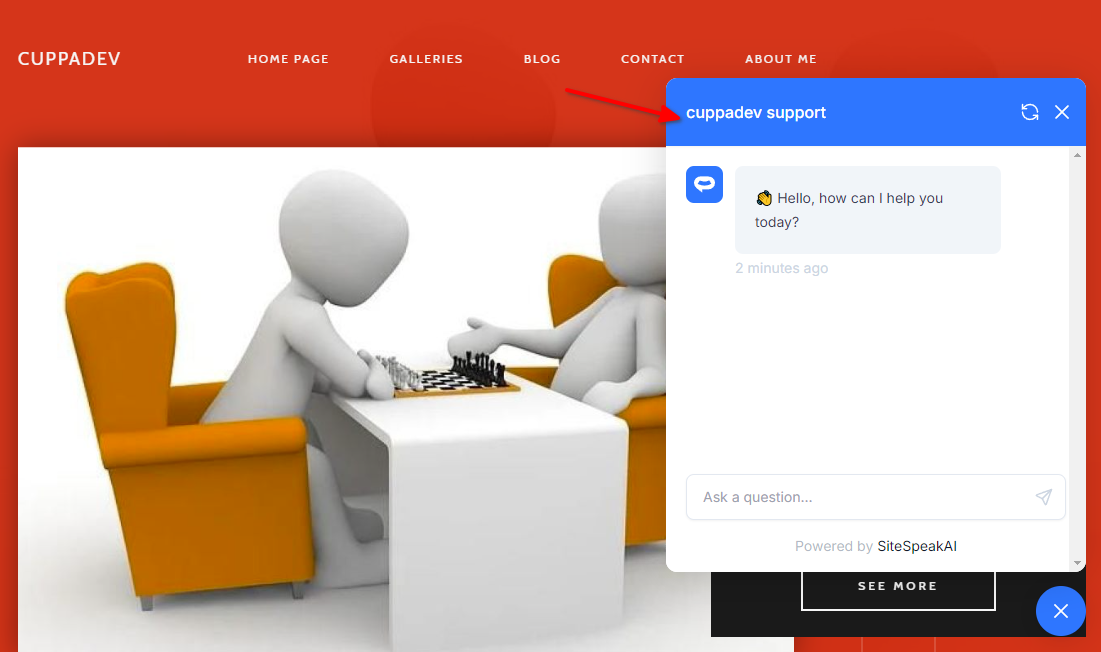 Your AI support agent is now added to your Photler website and your customers/visitors can start interacting with it!
Ready to automate your customer service with AI?
Join over 1000+ businesses, websites and startups automating their customer service and other tasks with a custom trained AI agent.