

Add your AI support agent to your Pagemaker landing page
In SiteSpeakAI
Select your chatbot from the dropdown menu at the top, click on the Install Agent section in the sidebar, then click on the Copy Code button to copy your code snippet.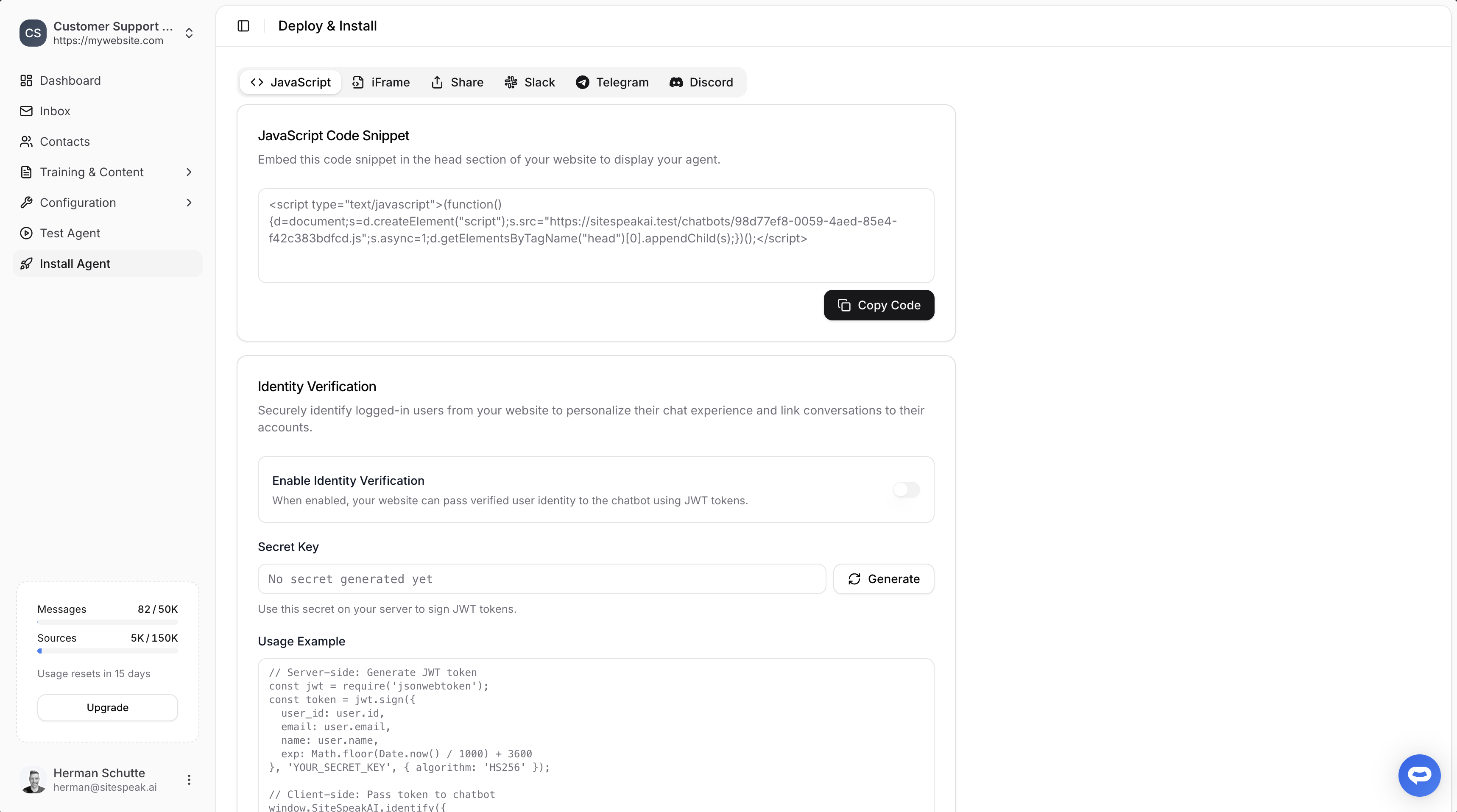
In Pagemaker
- Log into your Pagemaker account and select your landing page on the Landing Pages screen
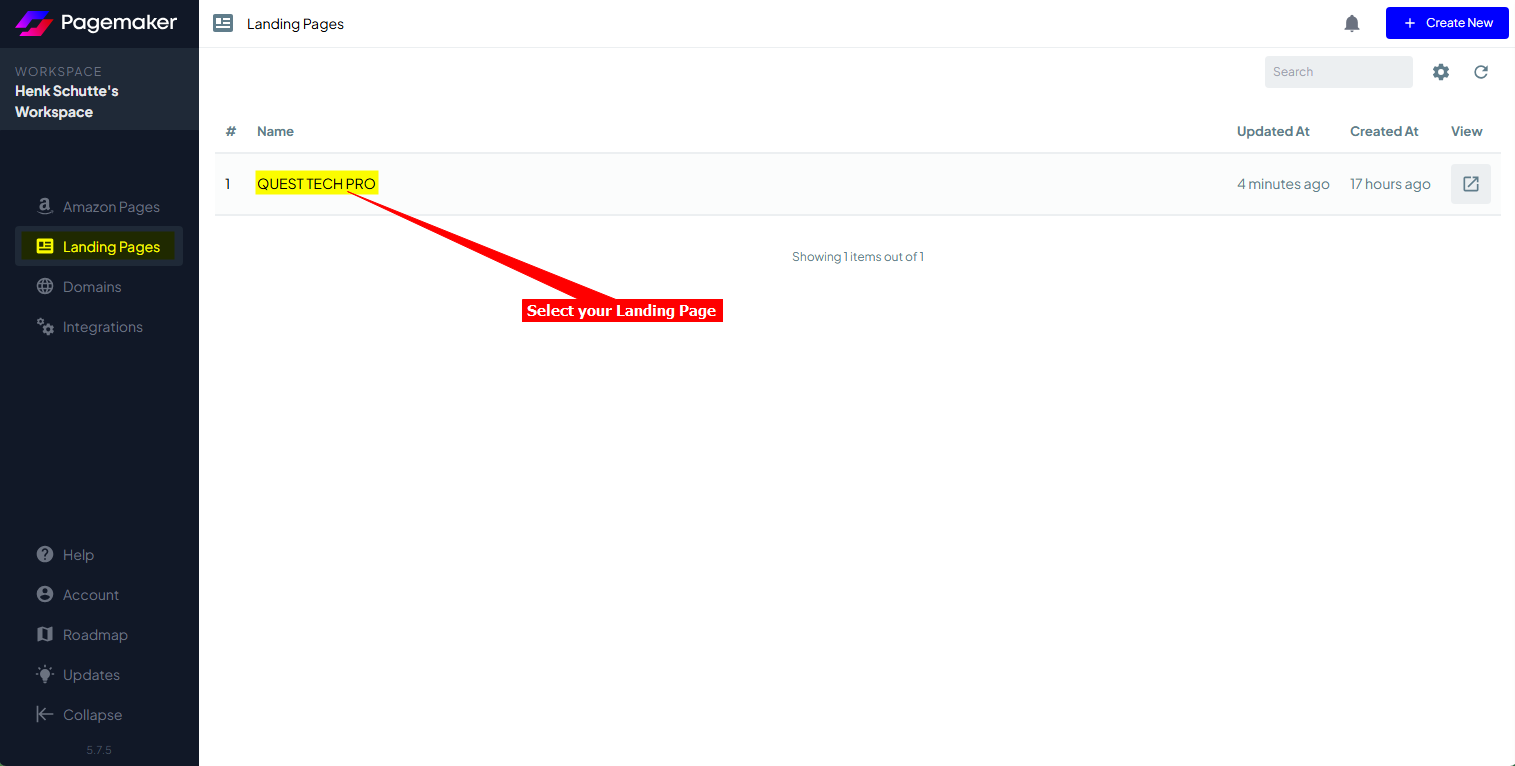
A. Using the Custom Code module option:
i. Click on Open in Editor to open the page in Edit mode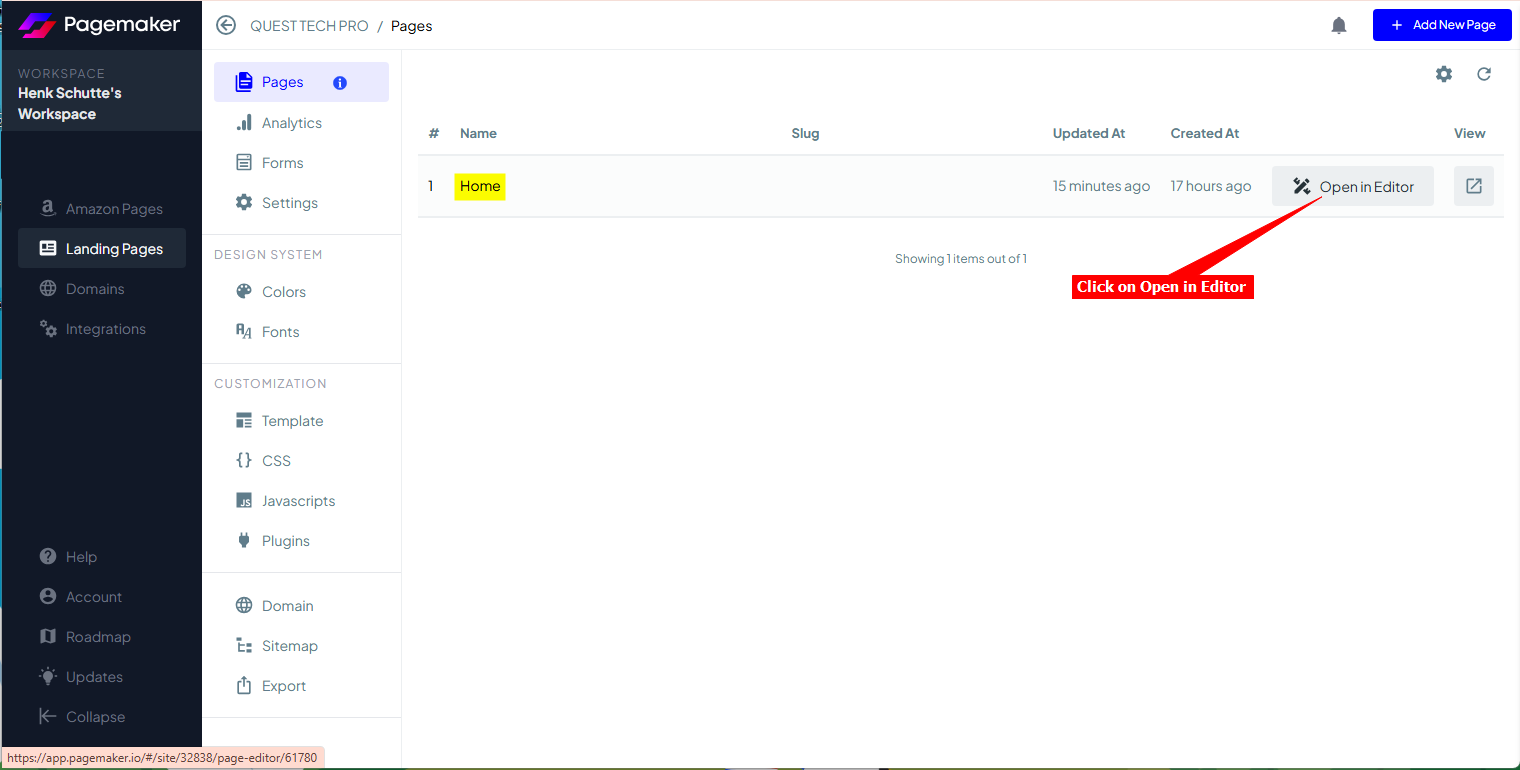 Note: On the left side you will see a list of modules (with names as created by Pagemaker). These are the items displayed on your page, i.e. Header, Hero, Footer, etc.
ii. Click on Add New Module to add a Custom Code module
Note: On the left side you will see a list of modules (with names as created by Pagemaker). These are the items displayed on your page, i.e. Header, Hero, Footer, etc.
ii. Click on Add New Module to add a Custom Code module
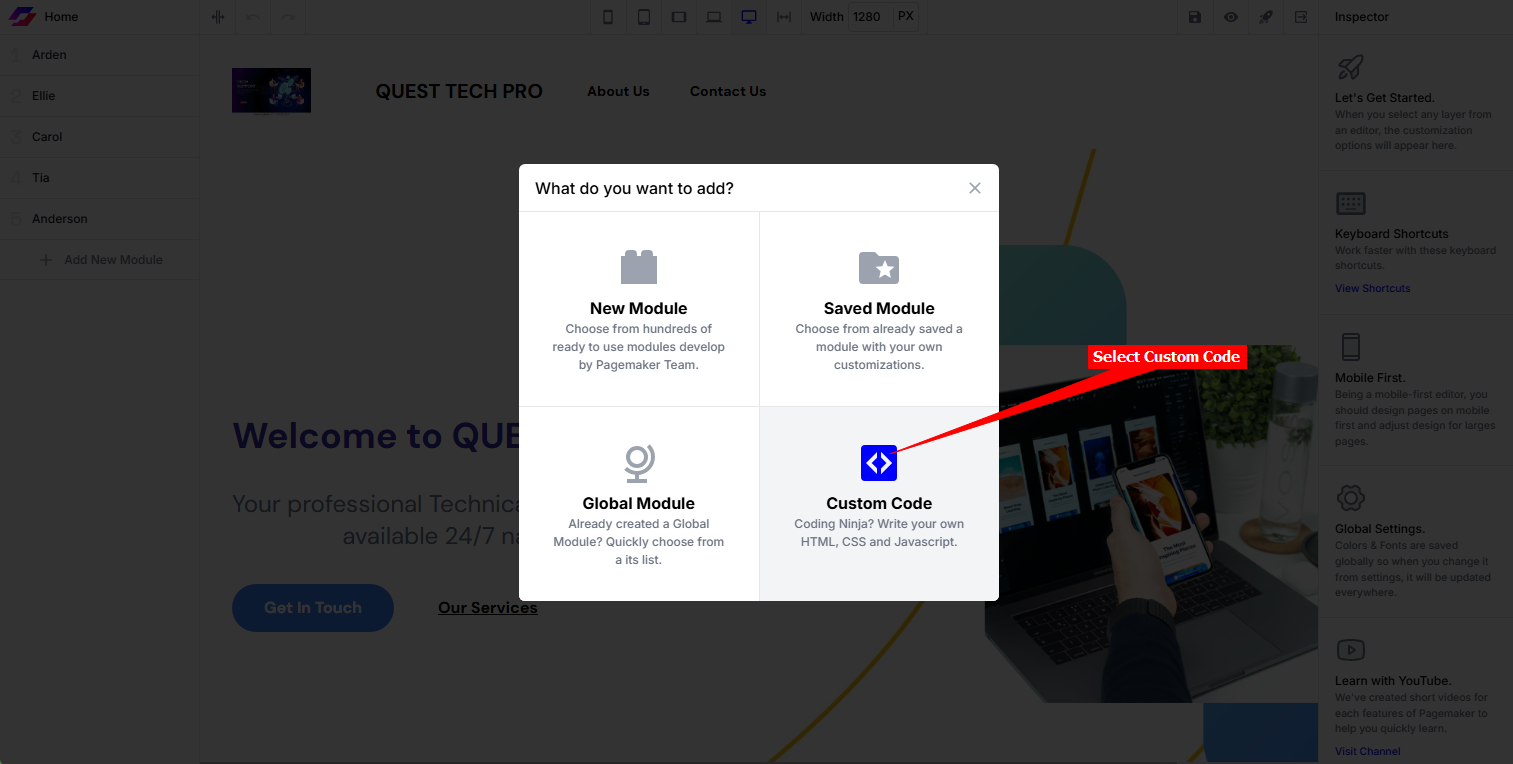
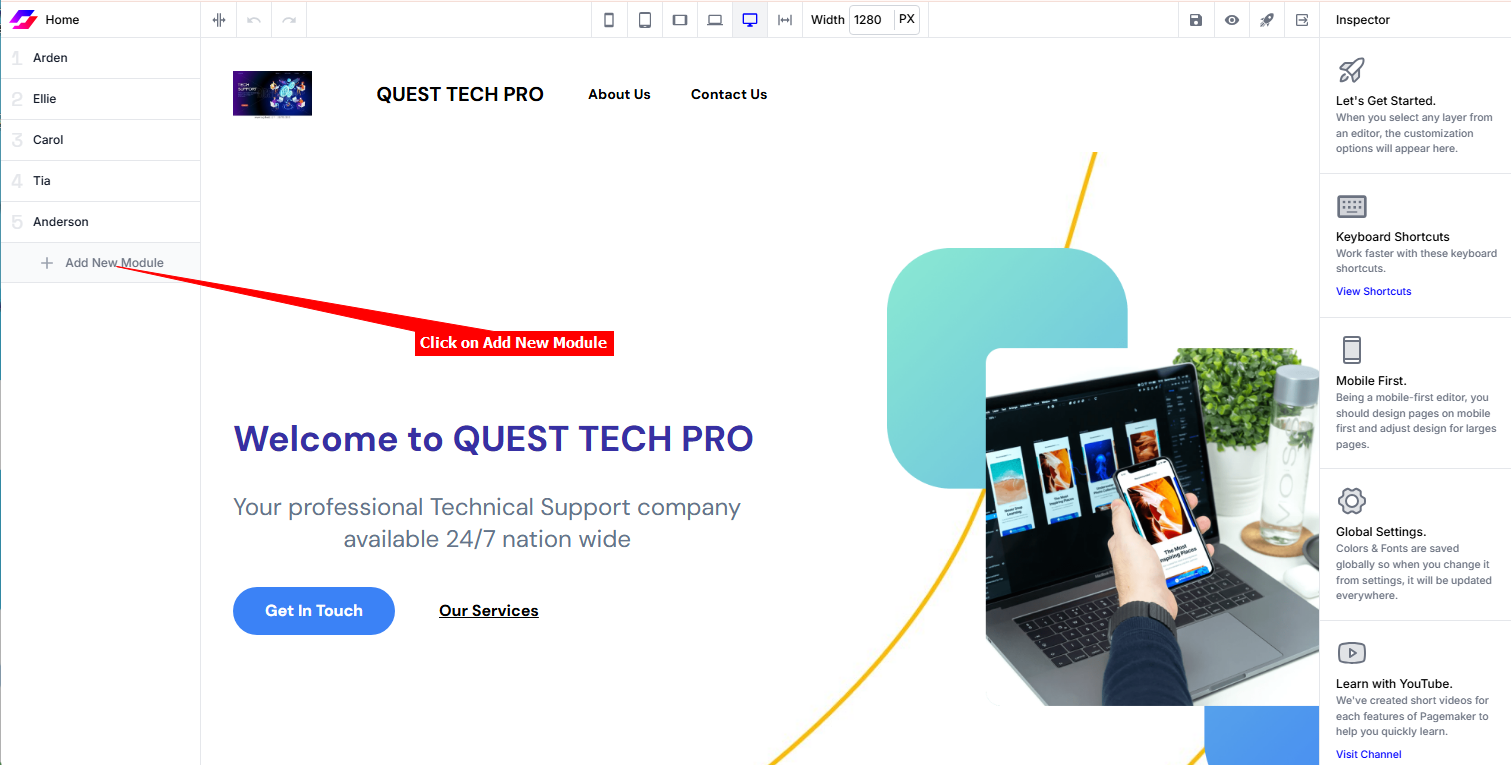 iii. Select the Custom Code module
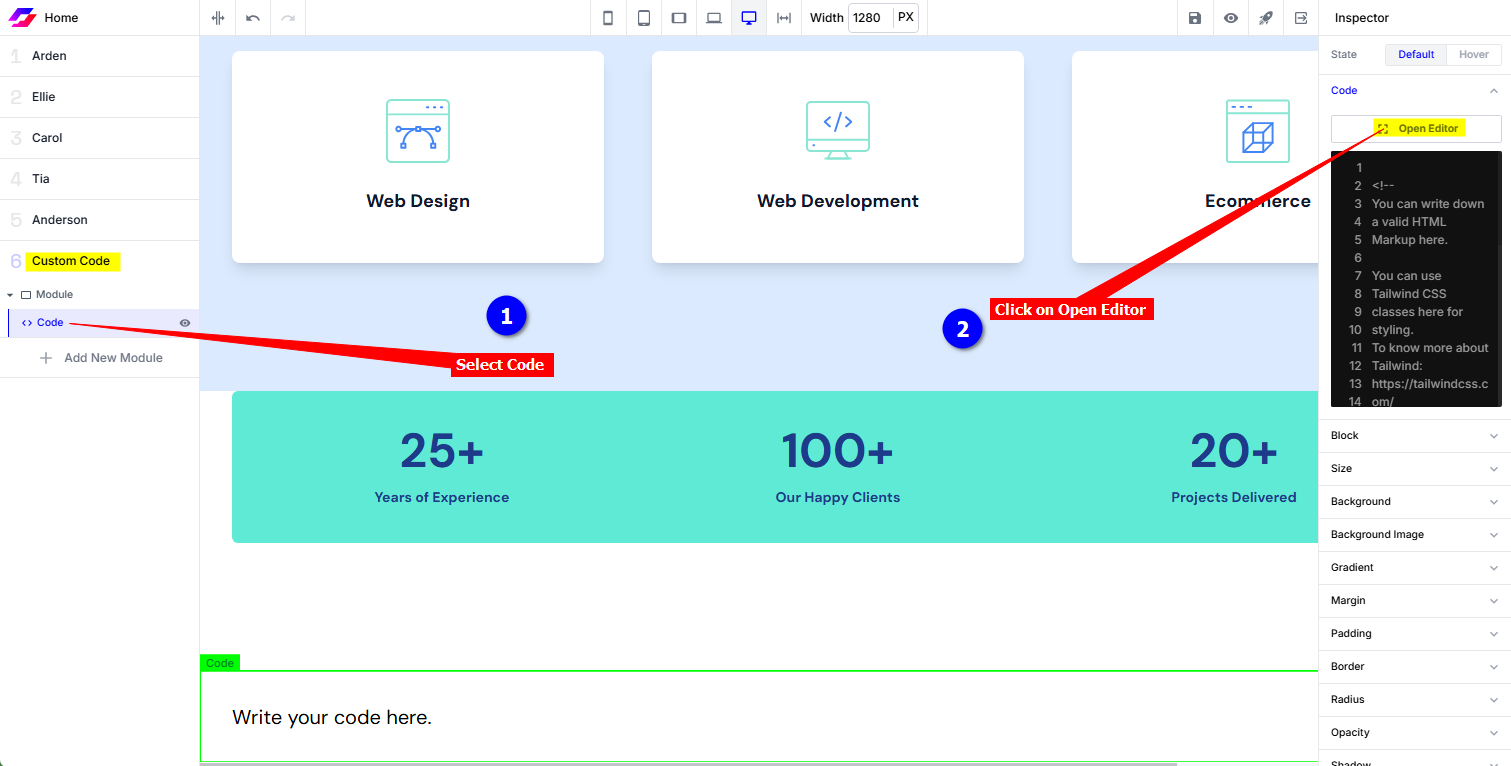
 iv. Select Code on the Custom Code module and click on Open Editor
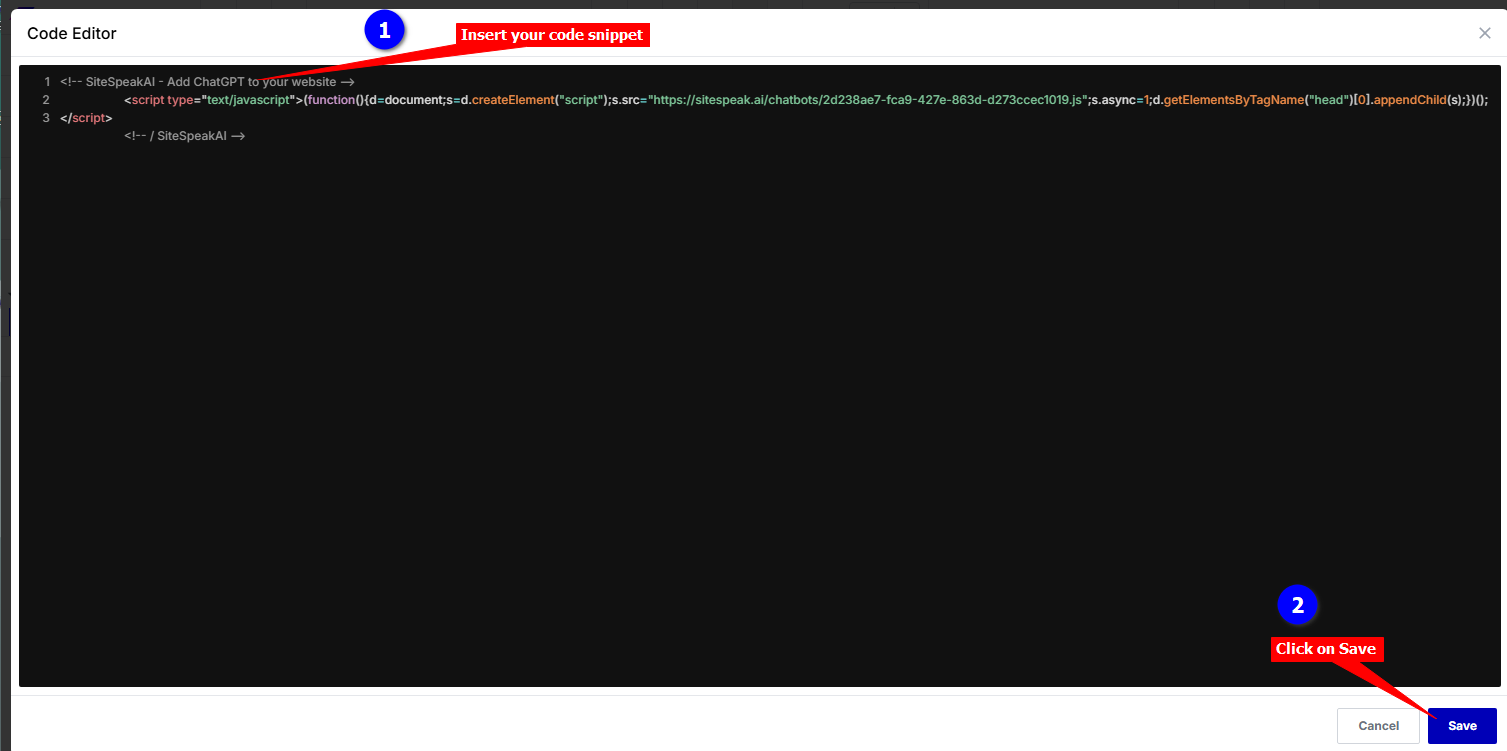
 v. Replace the current contents of the Code Editor with your AI support agent snippet and click on Save
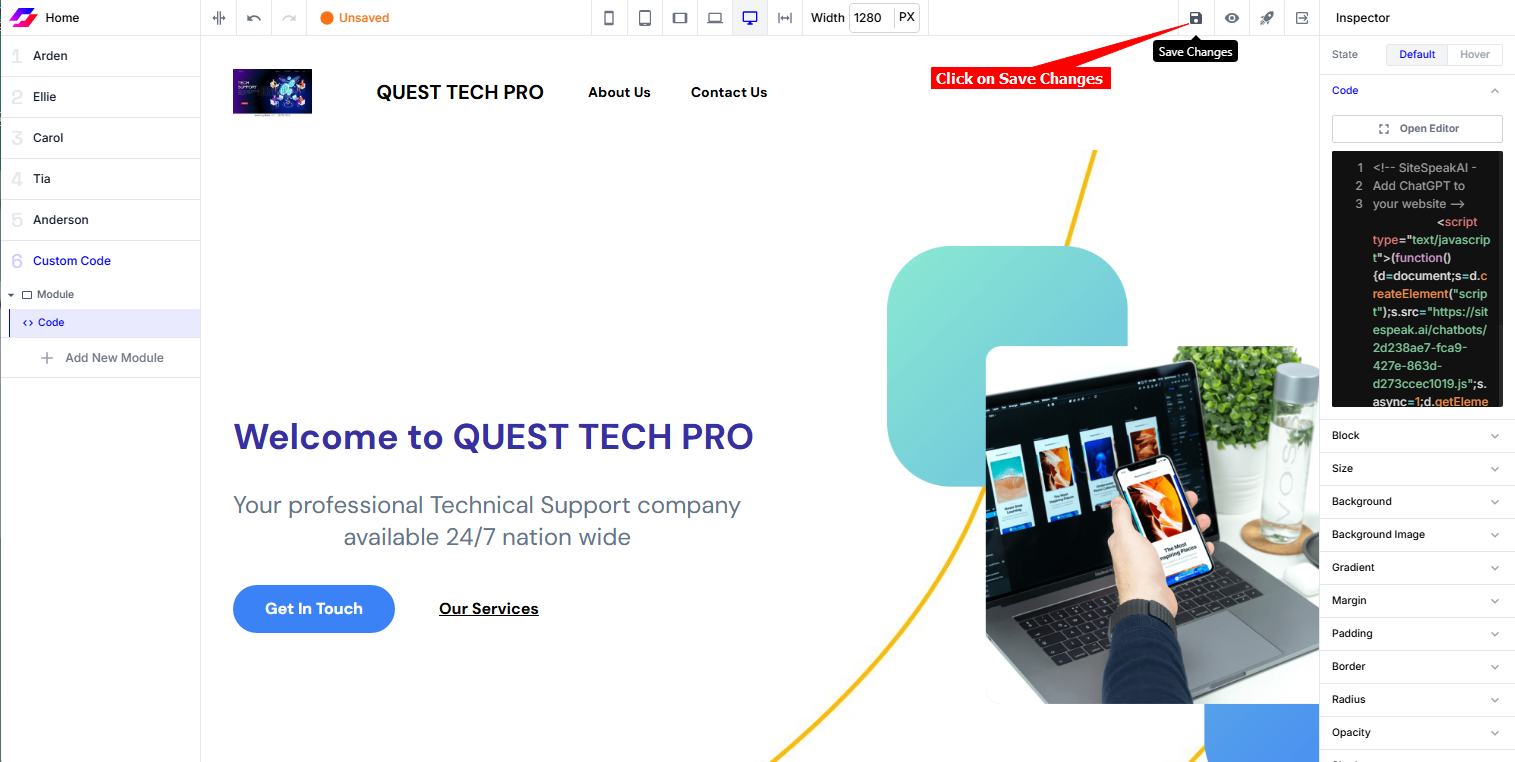
 vi. Click on Save Changes to update your page
B. Using the global Script option:
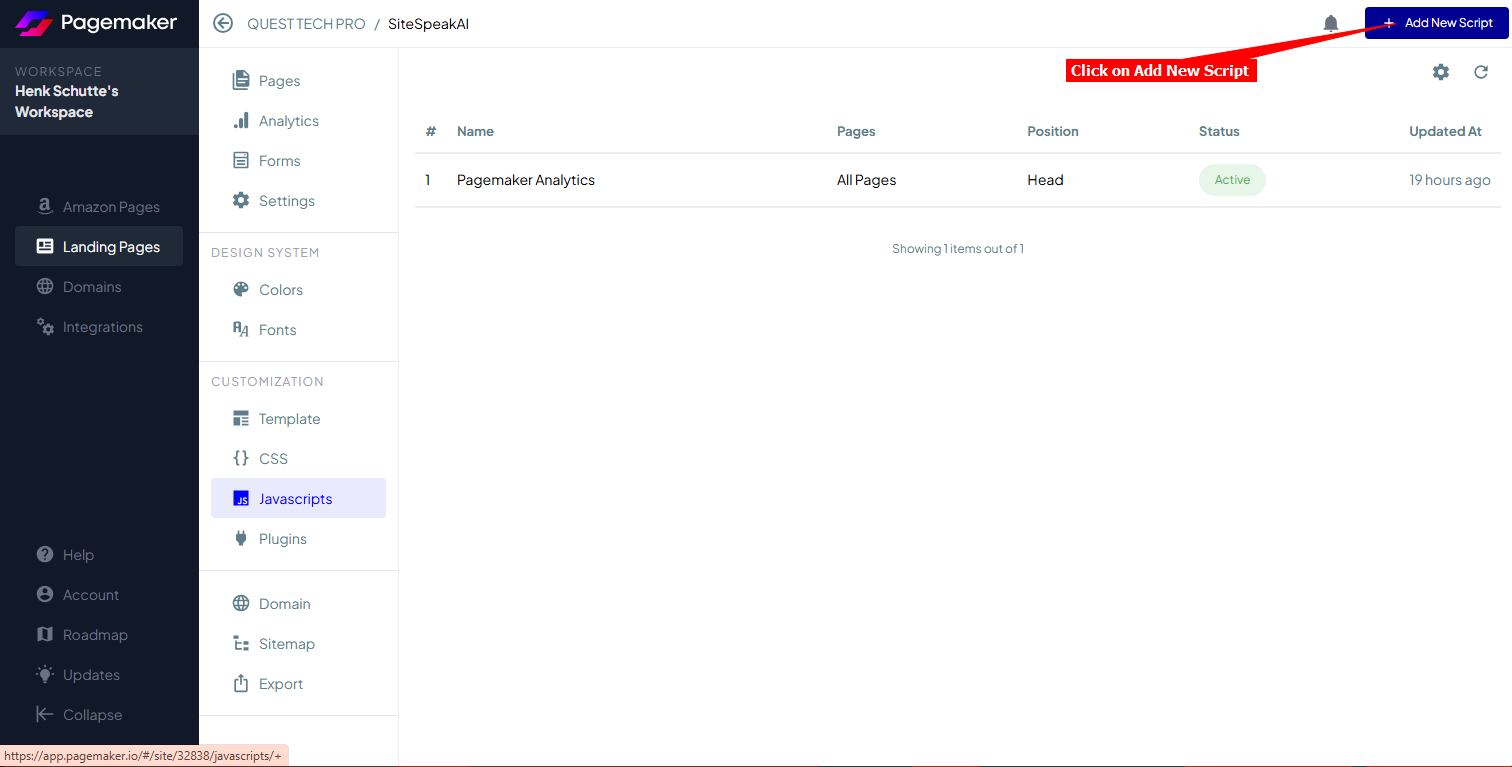
i. On the Pages screen, click on Javascripts under Customization to add your snippet as a new script to Pagemaker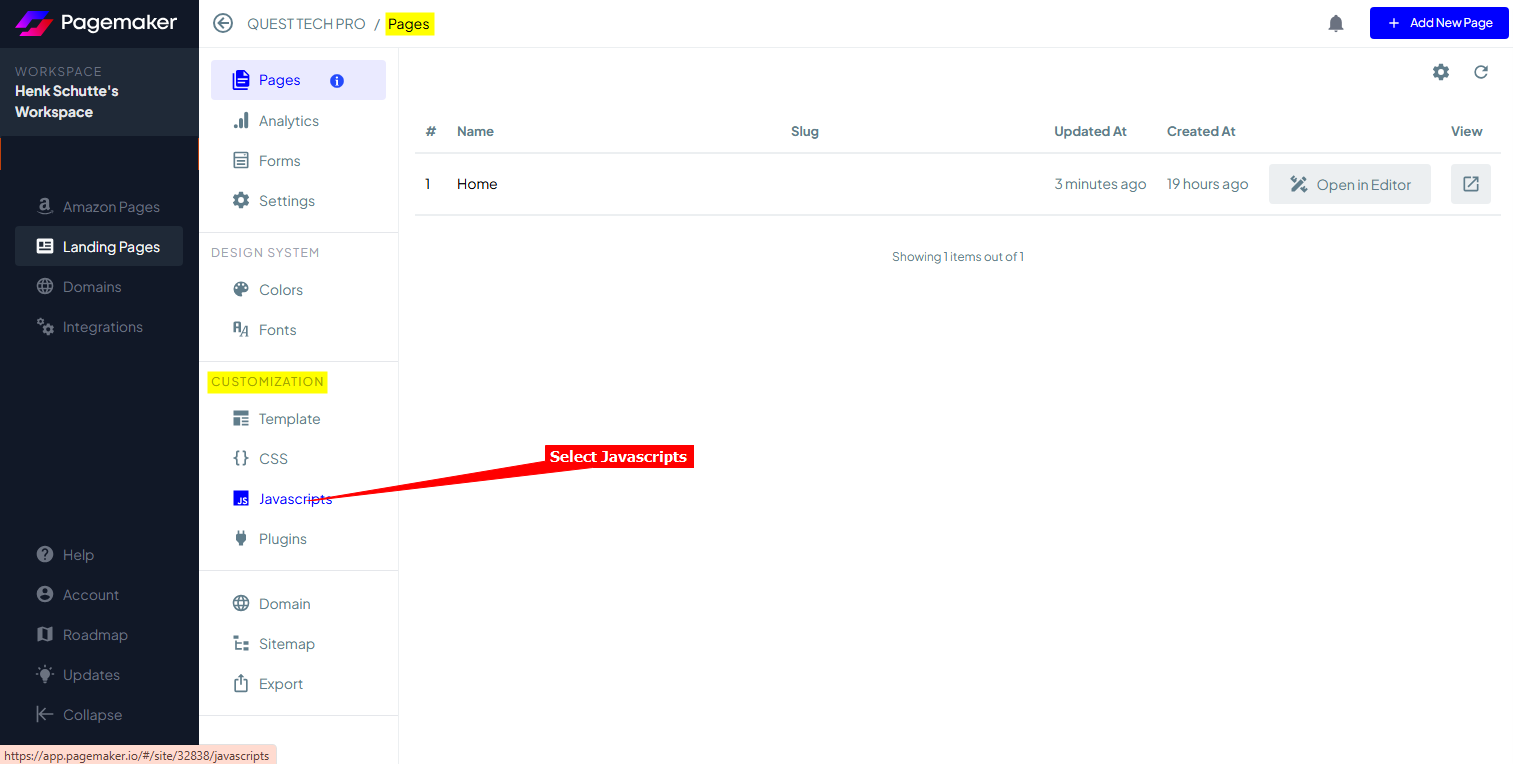 ii. Select + Add New Script to add a new script
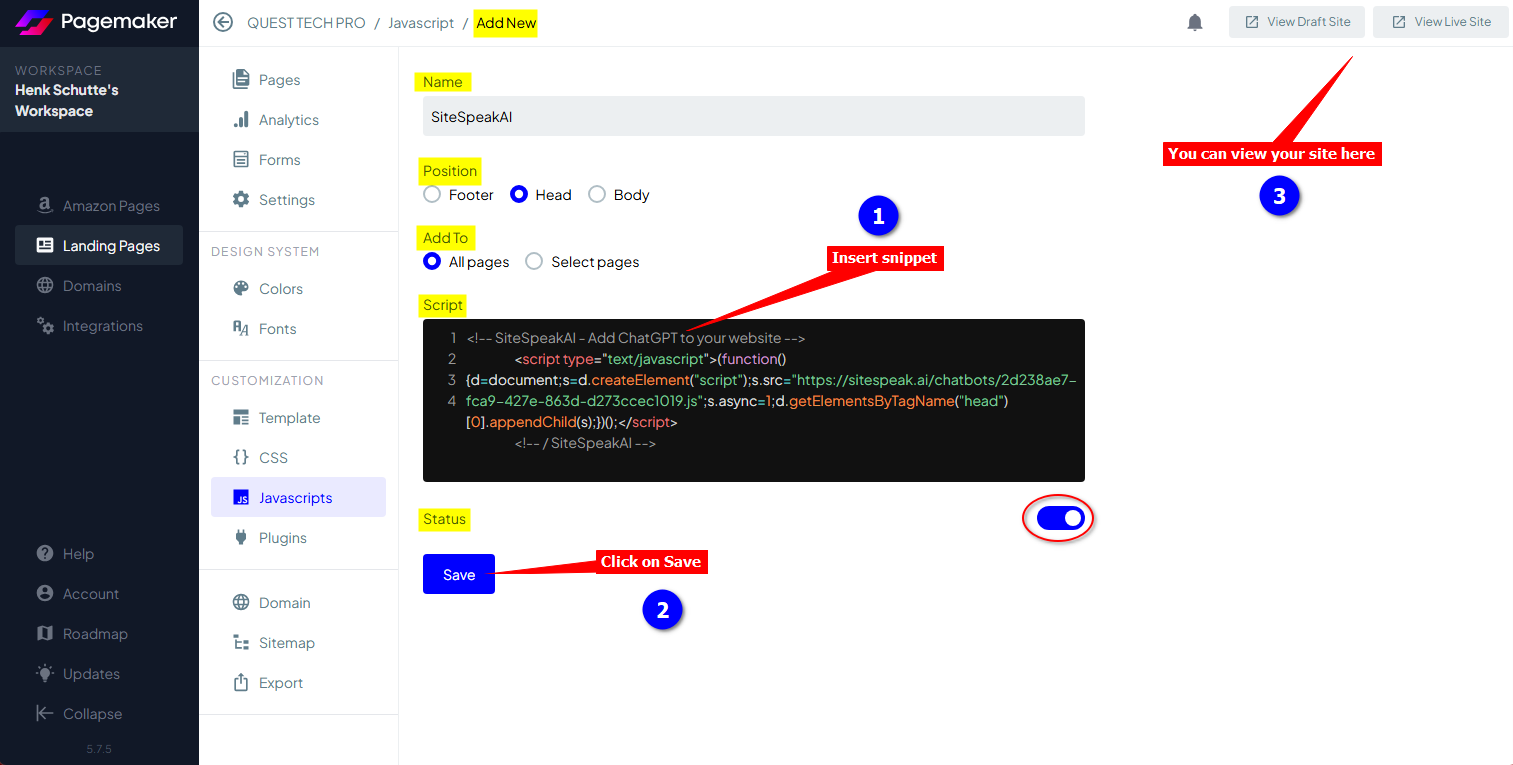
 iii. Provide a name for the script (we’ll just call it SiteSpeakAI), select the position where it will be displayed (this can be Footer or Head) and indicate if it should be displayed on All pages or Select pages.
Replace the contents of the current Script with your snippet, make sure the status is enabled and click on Save. You can also use View Draft Site or View Live Site to see how your snippet performs
iii. Provide a name for the script (we’ll just call it SiteSpeakAI), select the position where it will be displayed (this can be Footer or Head) and indicate if it should be displayed on All pages or Select pages.
Replace the contents of the current Script with your snippet, make sure the status is enabled and click on Save. You can also use View Draft Site or View Live Site to see how your snippet performs
C. For both options:
-
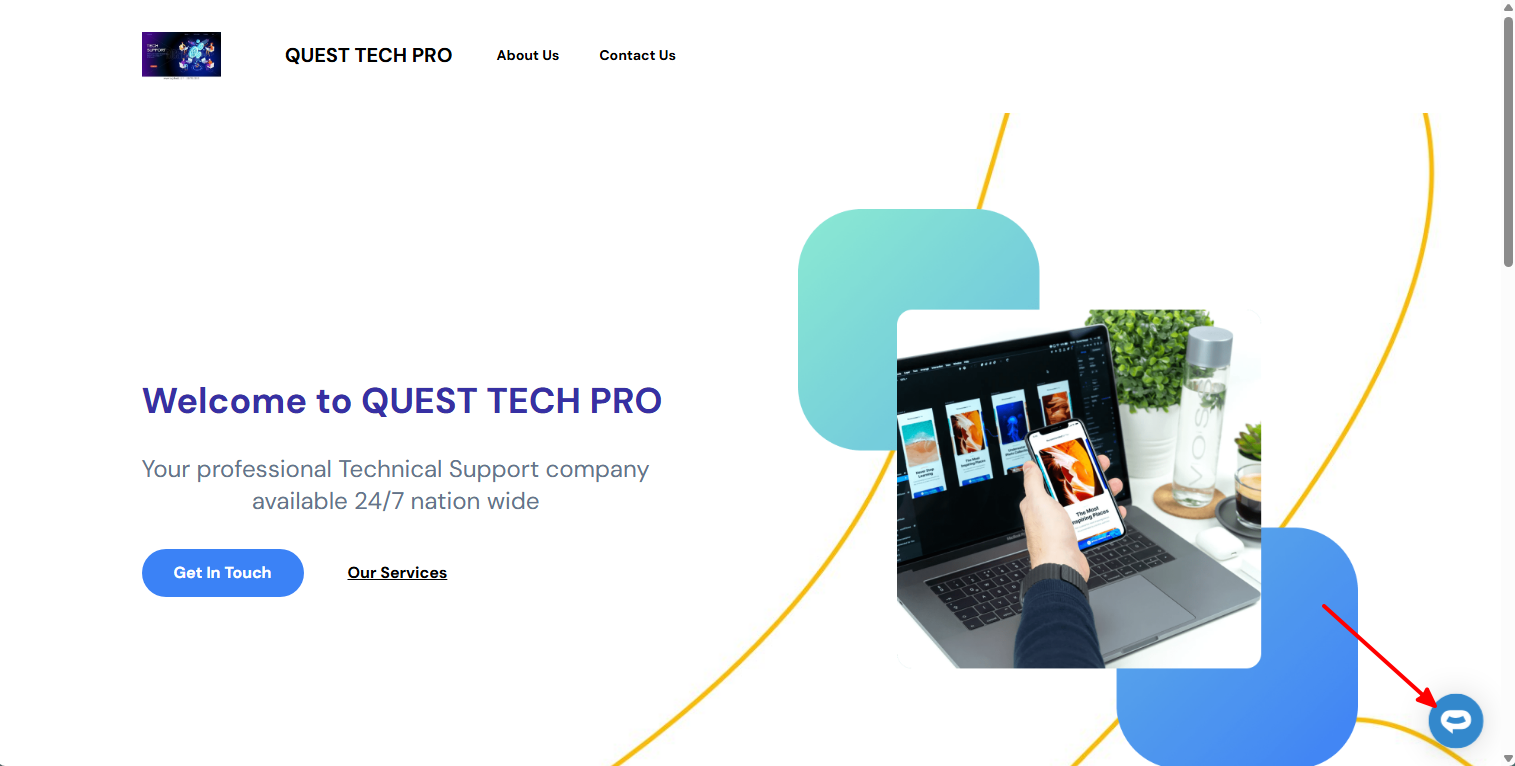
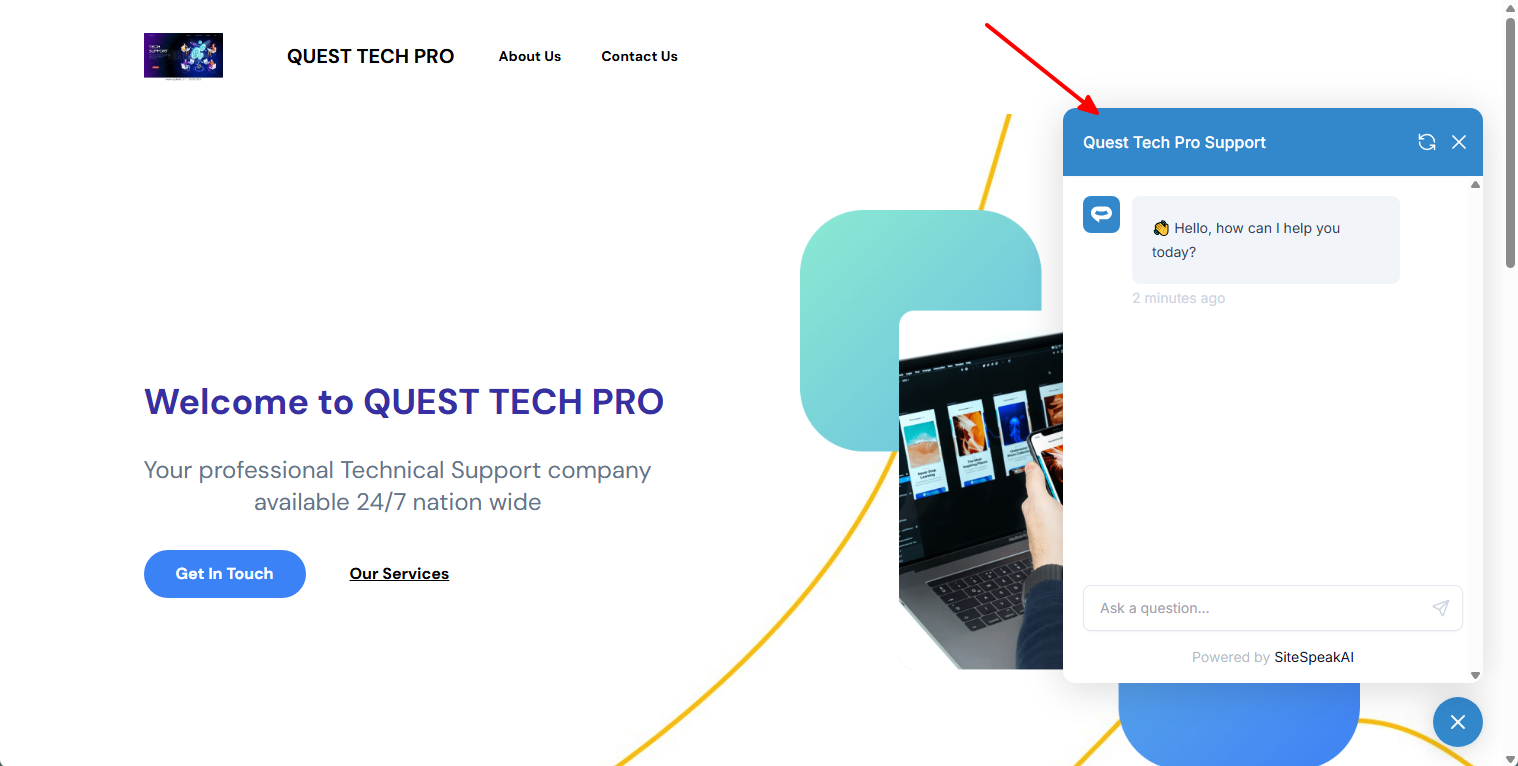
Your AI support agent button will now be displayed on your Pagemaker landing page
-
If you click on the button, it will display the AI support agent dialogue
Ready to automate your customer service with AI?
Join over 1000+ businesses, websites and startups automating their customer service and other tasks with a custom trained AI agent.