

Video transcript
Video transcript
Visitors on your Framer site have questions. What does this cost? Do you work with companies like mine? How do I start?A SiteSpeak AI agent can answer these questions for you, at any time. This video shows how to make the agent, test it, and add it to your Framer site. It also shows how to collect leads, and how to make the answers better.Step 1. Make the agent. Log in to SiteSpeak. Type a name for your agent. Type the URL of your Framer site. SiteSpeak finds your pages and selects the main pages for you. Click Save and Continue. SiteSpeak trains the agent on these pages. This takes a few minutes.Step 2. Test the agent. Before you add the agent to your site, test it. Open Test Agent. Ask three questions that your visitors ask. For example, ask about prices, services, and contact details. Read each answer. If an answer is not correct, add the missing information in Training and Content.Step 3. Brand the agent. Open Appearance. Set the Accent Color to your brand color. Under Icons, upload your logo. Type a Welcome Message. For example: Hi, ask me about our services or prices. Now the agent looks like part of your site.Step 4. Add the agent to Framer. Open Install Agent, and copy the install snippet. In Framer, open your project, and click Settings. In Site Settings, click Custom Code. Add a new script. Paste the snippet in Code. Set Placement to End of body. Then click Save. Click Publish. The chat button is now on your Framer site.Step 5. Collect leads. Open Settings, and go to the Leads tab. Turn on Enable Lead Capture. Add the fields that you need, for example name and email. Now the agent asks for these details before the chat starts. You can see each lead in Contacts. Lead capture is available on the paid plans.Step 6. Send difficult questions to your team. Some questions need a person. For example, a custom quote, or a complaint. Open Settings, and go to Escalations. Turn on Enable Escalations. Type the email address of your team. When a visitor asks for a person, the agent sends the conversation to your team. You can read and reply to all conversations in the Inbox. Escalations are available on the Pro plan and higher.Step 7. Make the answers better. Open the Dashboard. Look at Top Unanswered Questions. These are the questions that the agent could not answer. For each question, add the missing information. Or add an Updated Answer. Do this each week. Then the agent can answer more questions each week.You can start with a free plan at sitespeak.ai.
Add your AI support agent to your Framer website
In SiteSpeakAI
Select your chatbot from the dropdown menu at the top, click on the Install Agent section in the sidebar, then click on the Copy Code button to copy your code snippet.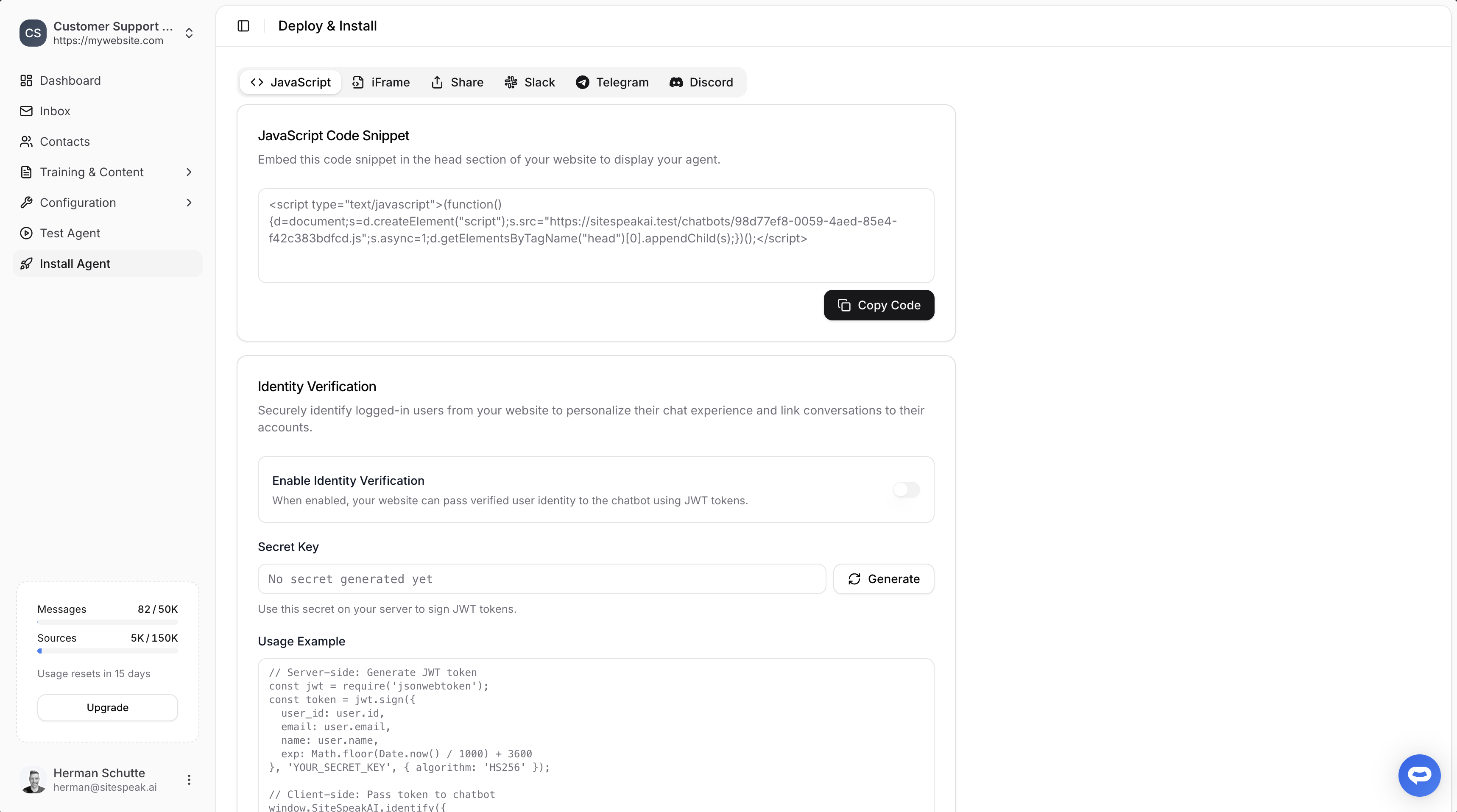
In Framer
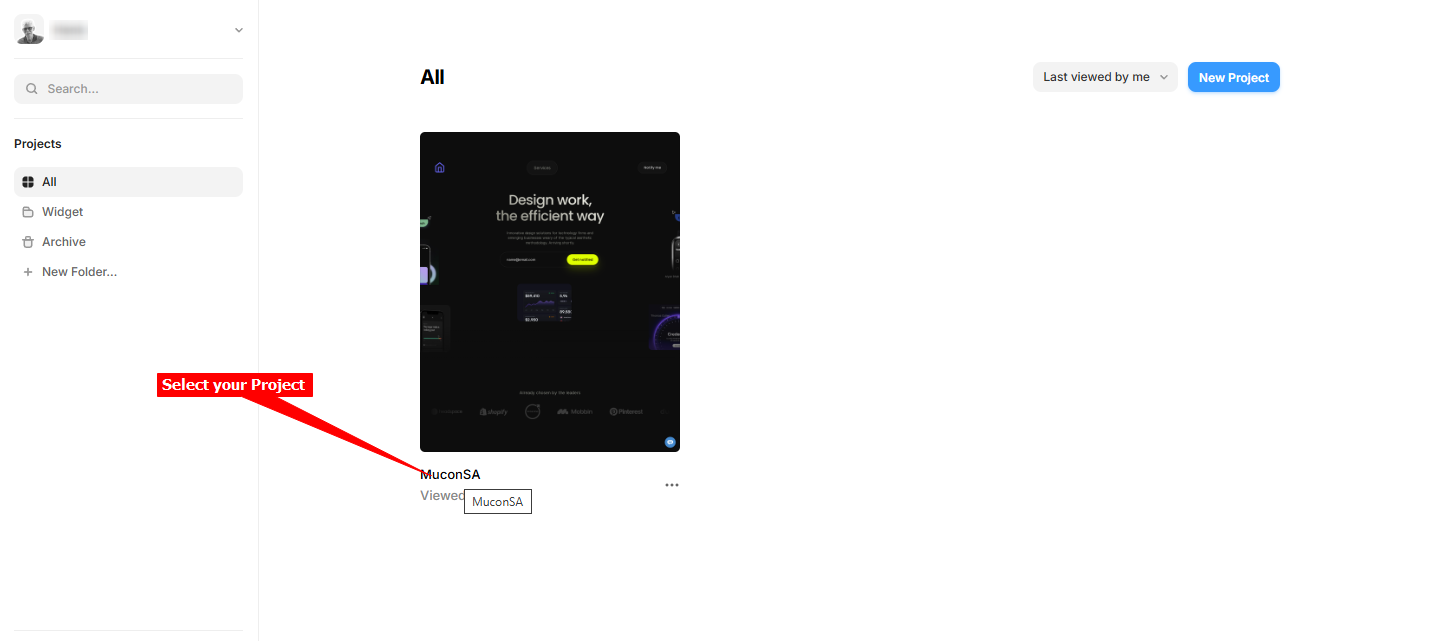
- Log into your Framer account and on the dashboard, select the project to edit
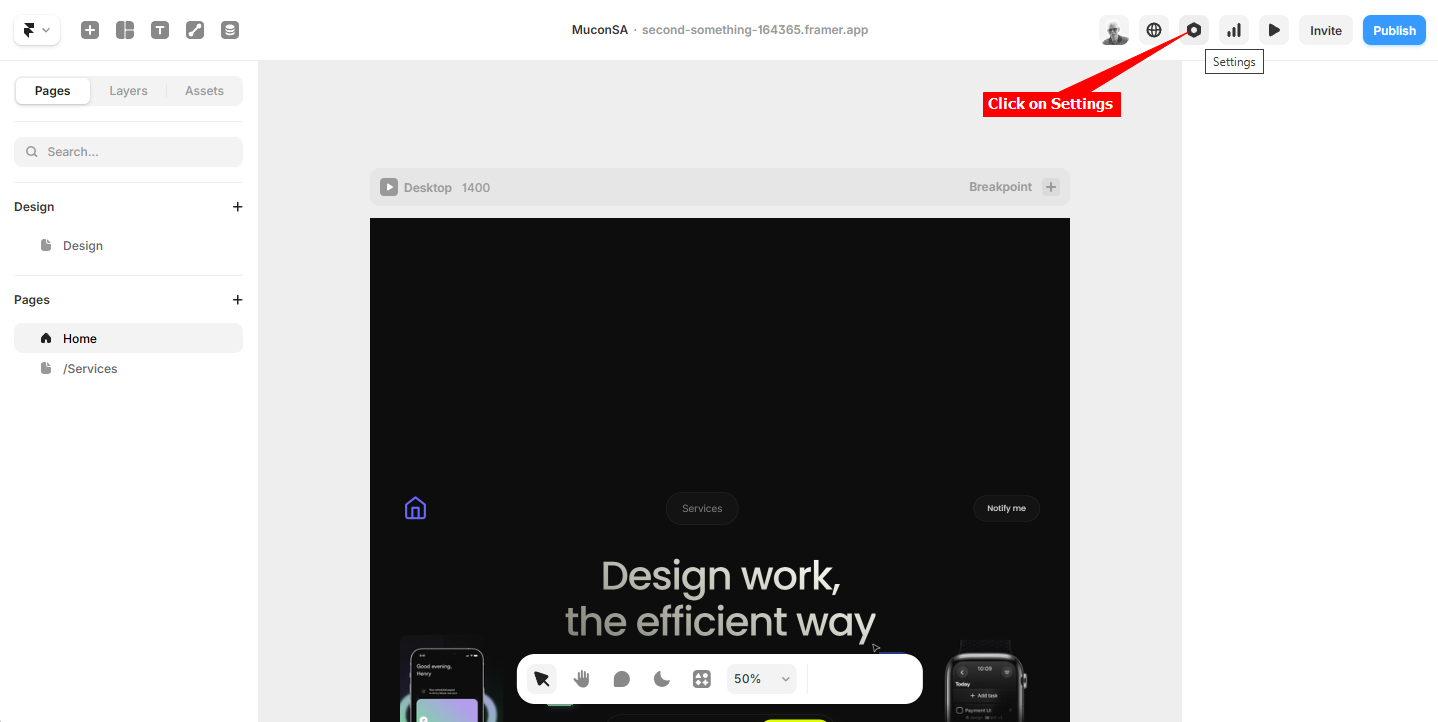
- Click on Settings to open the Site Settings
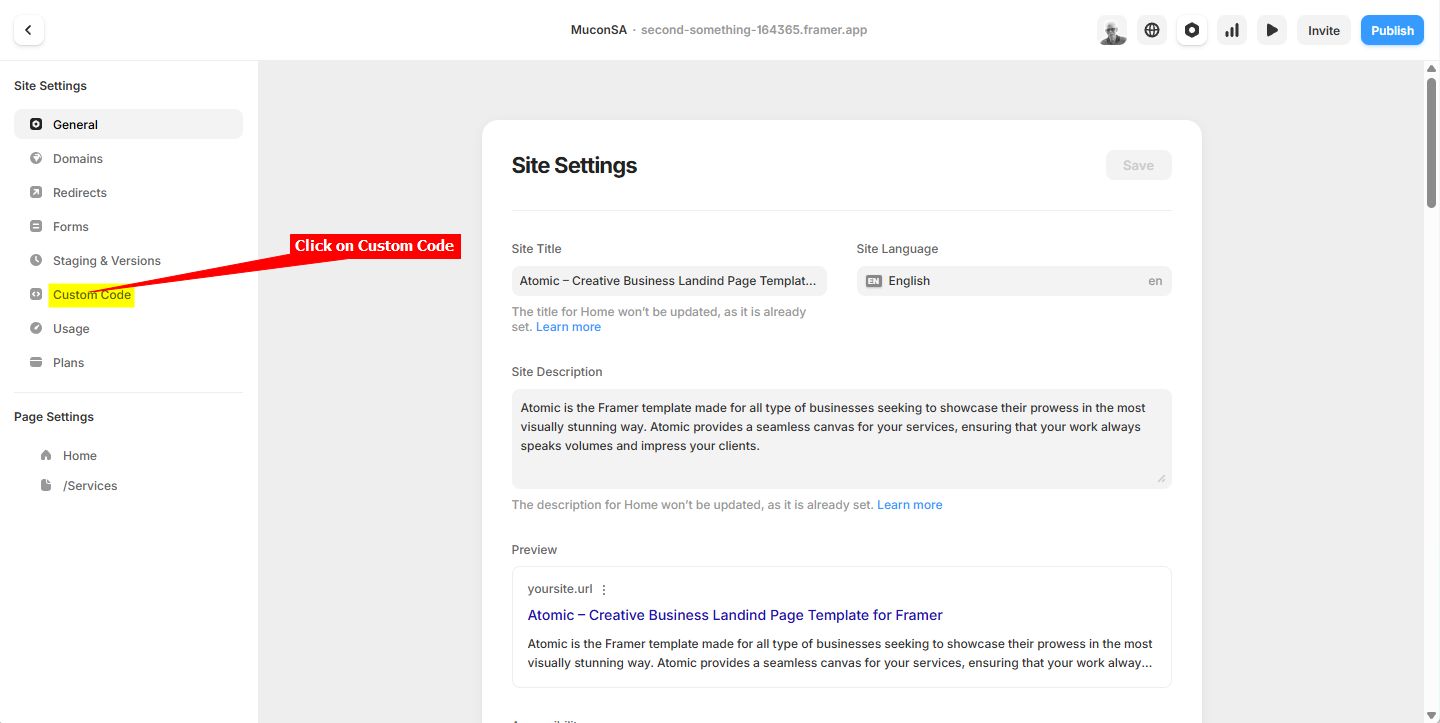
- Under Site Settings, on the left side bar, click on Custom Code
-
On the Custom Code page, click on the
<>Custom Code item to open the Script Editor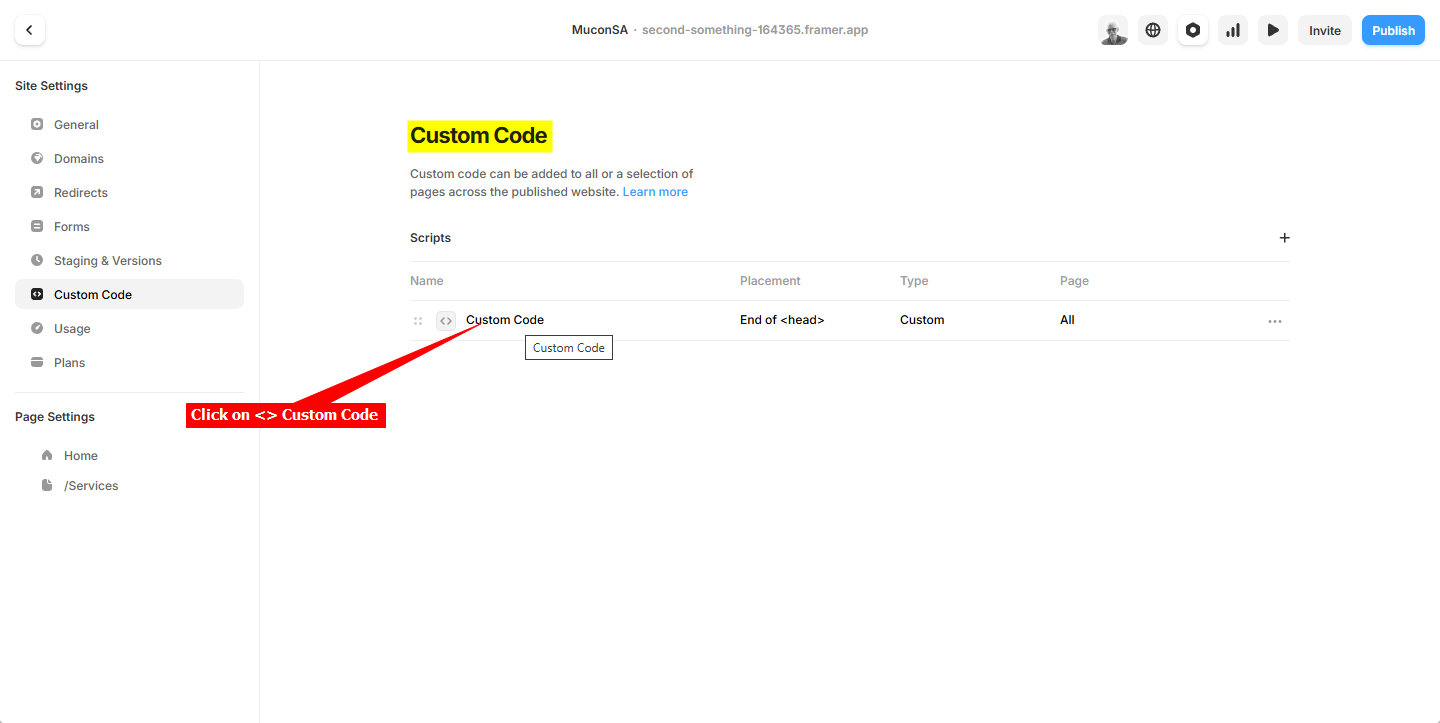
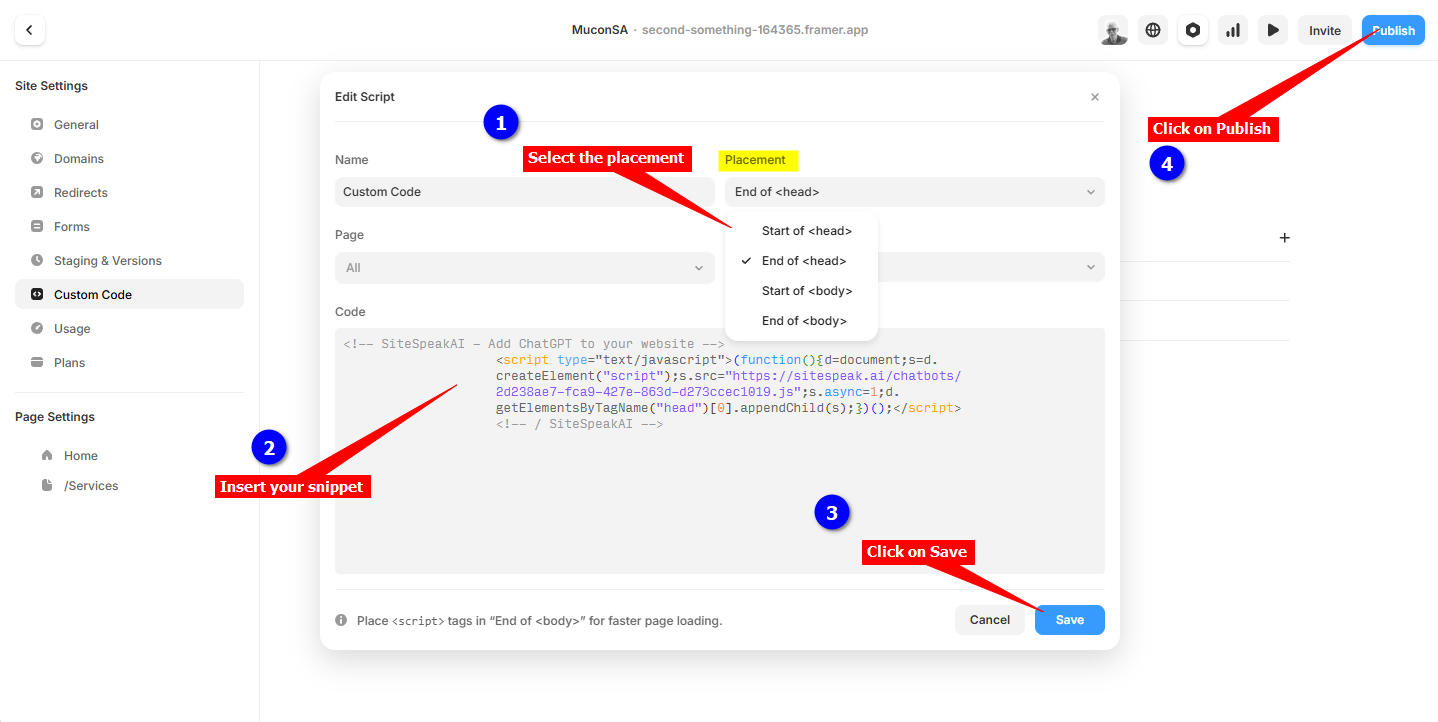
- Insert your snippet. You have a few options where to insert your snippet, i.e.
- Start of
<head> - End of
<head> - Start of
<body> - End of
<body>
-
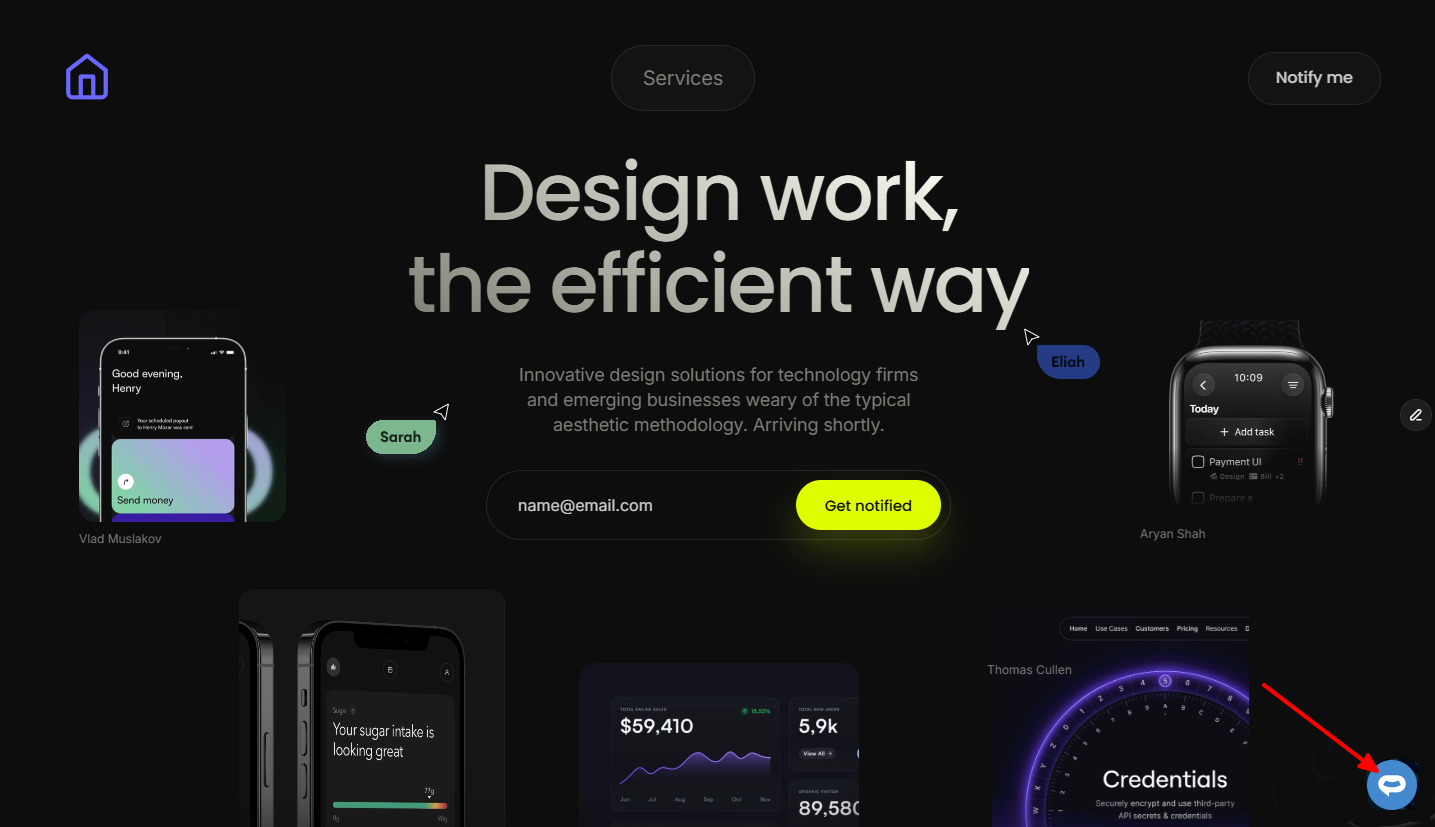
Your AI support agent button will now be displayed on your Framer website page
-
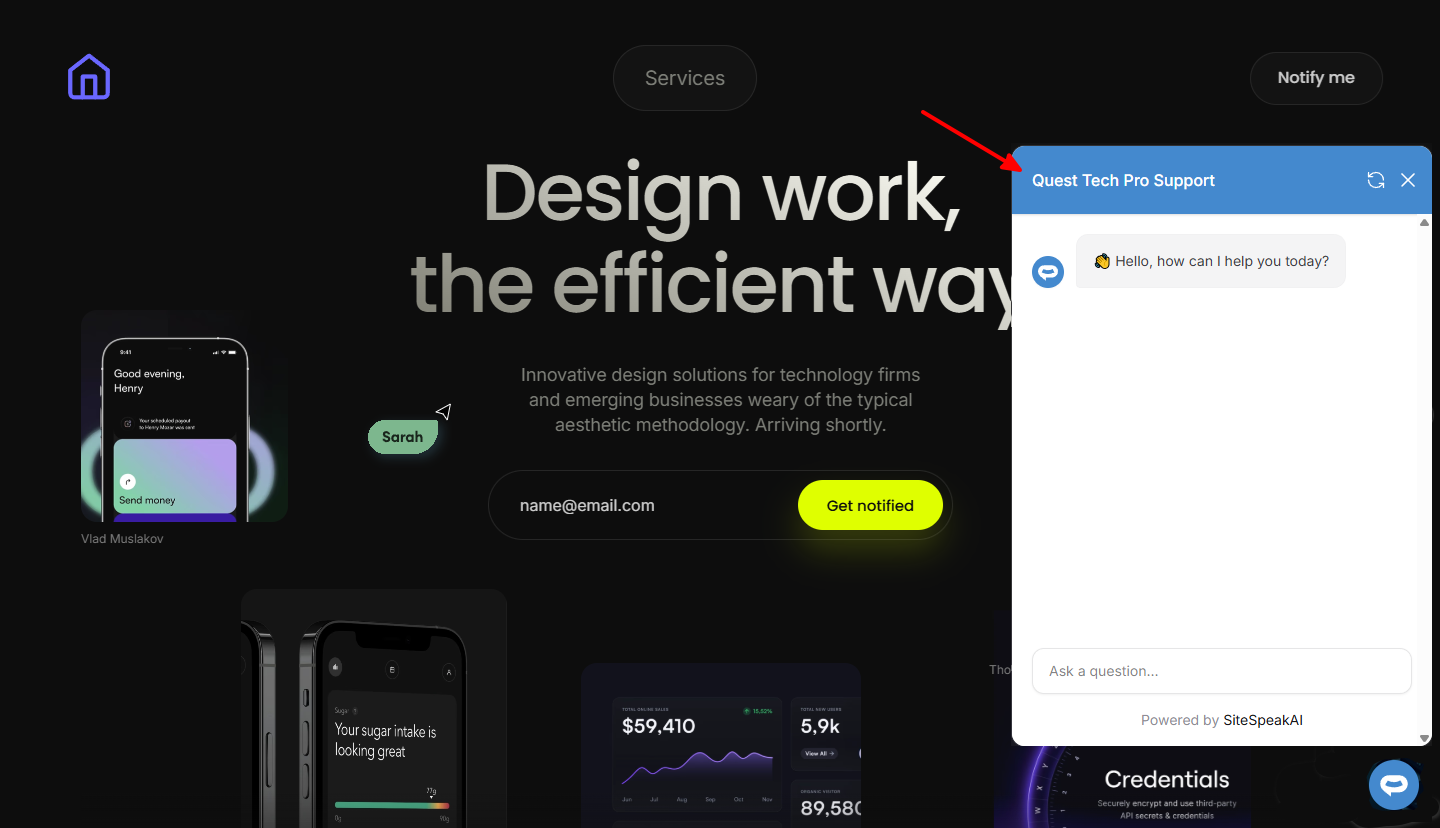
If you click on the button it will display the AI support agent dialogue
Ready to automate your customer service with AI?
Join over 1000+ businesses, websites and startups automating their customer service and other tasks with a custom trained AI agent.