

Add your AI support agent to your Versoly website
In SiteSpeakAI
Select your chatbot from the dropdown menu at the top, click on the Install Agent section in the sidebar, then click on the Copy Code button to copy your code snippet.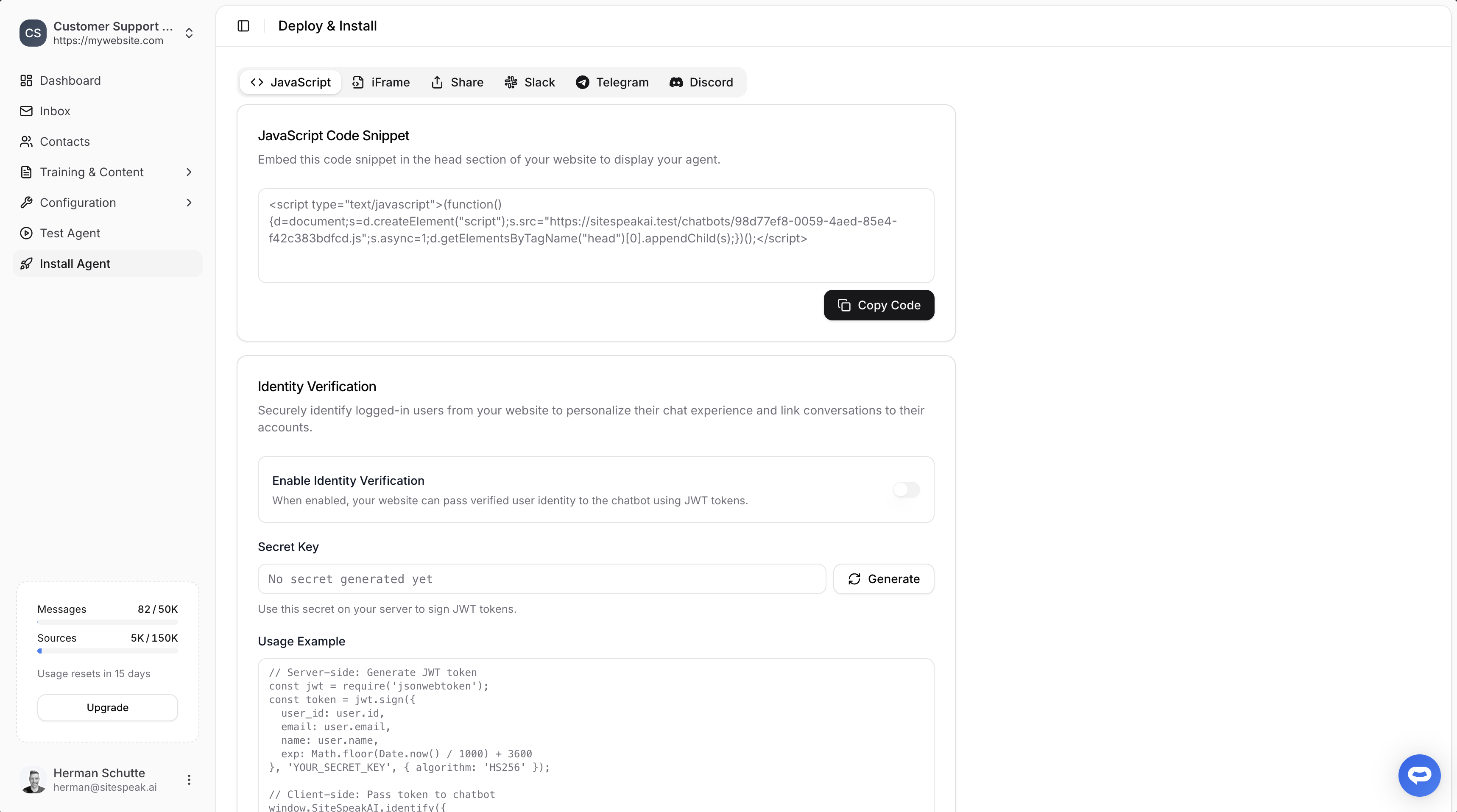
In Versoly
-
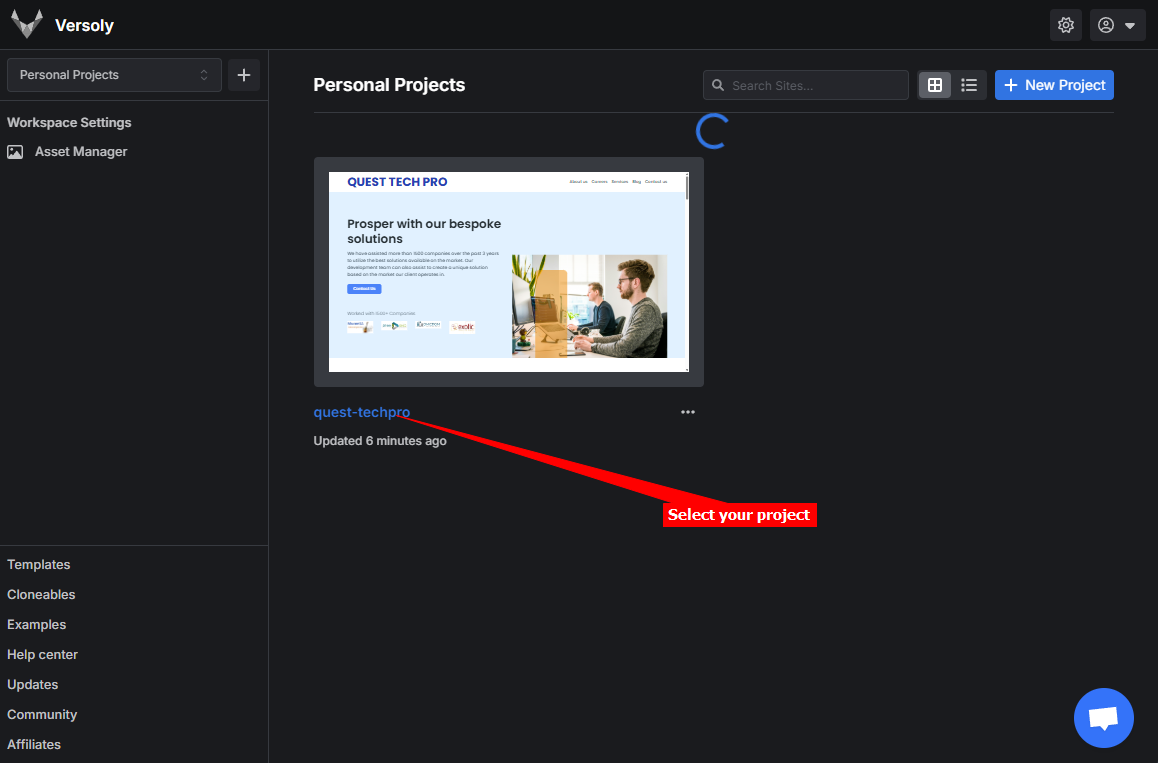
Log into your Versoly account and on the dashboard select the project you want to add your AI support agent to
-
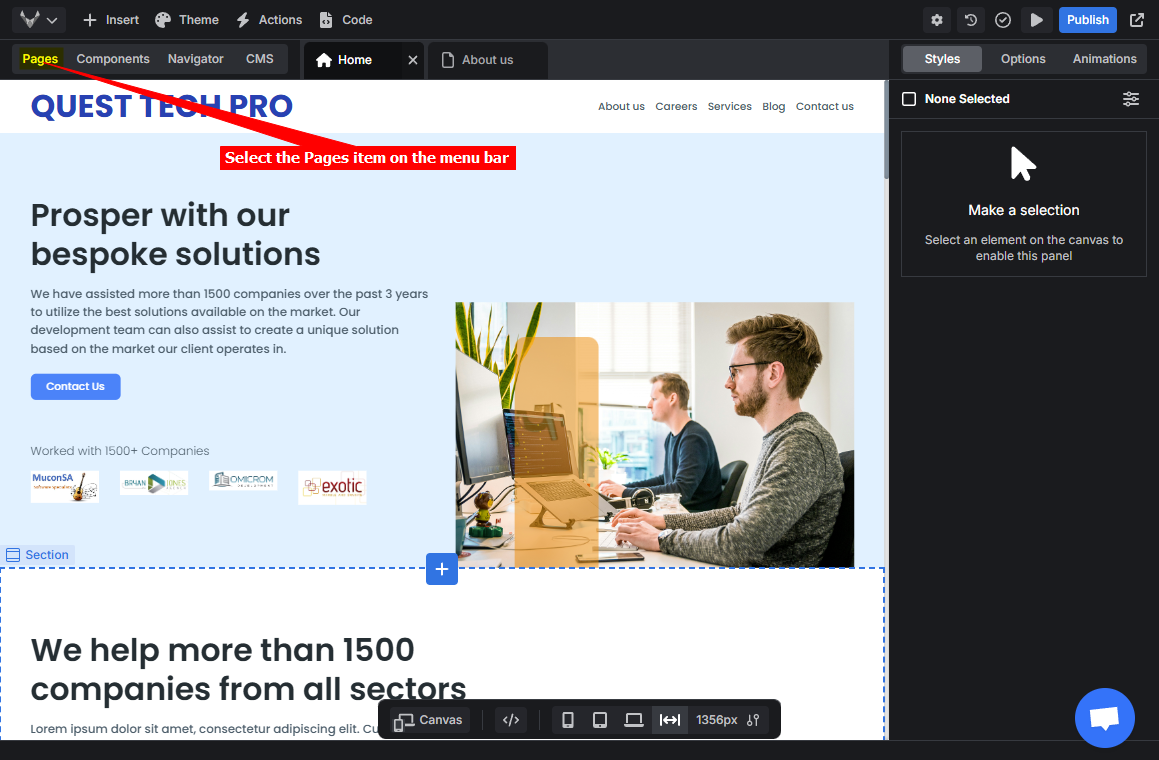
On the editor page select Pages on the top menu bar
-
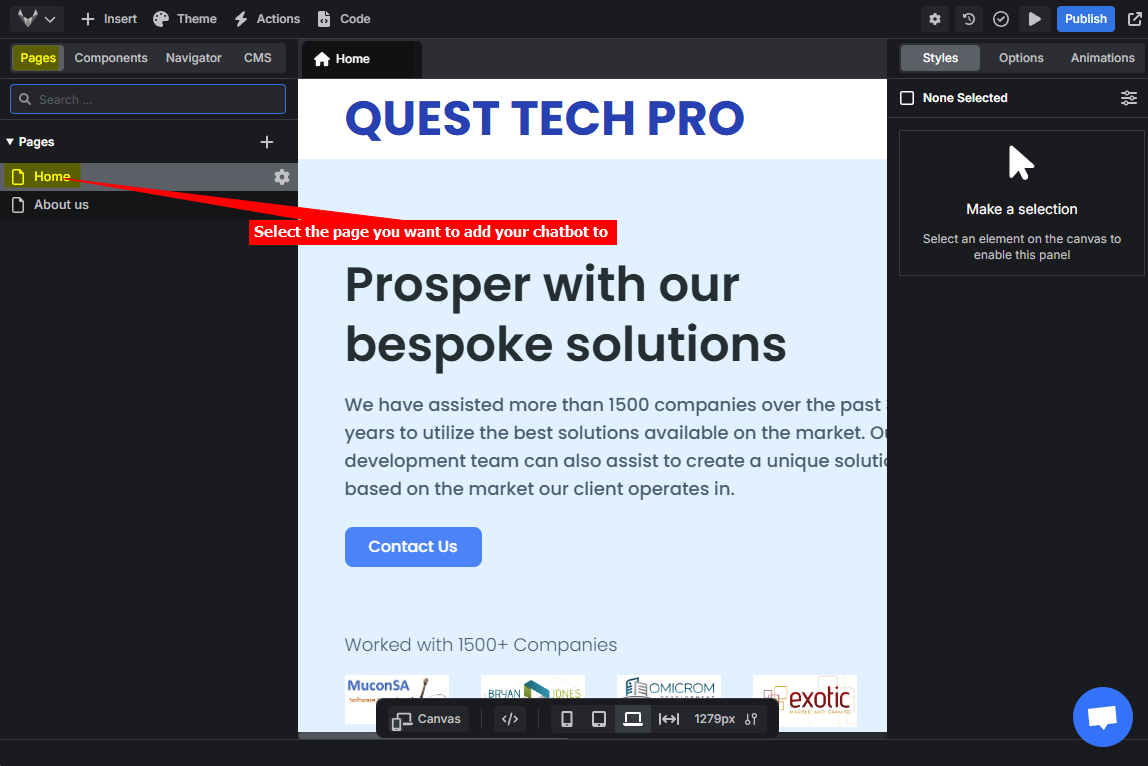
Select the page you want to add your snippet to
-
Click on Settings on the top toolbar
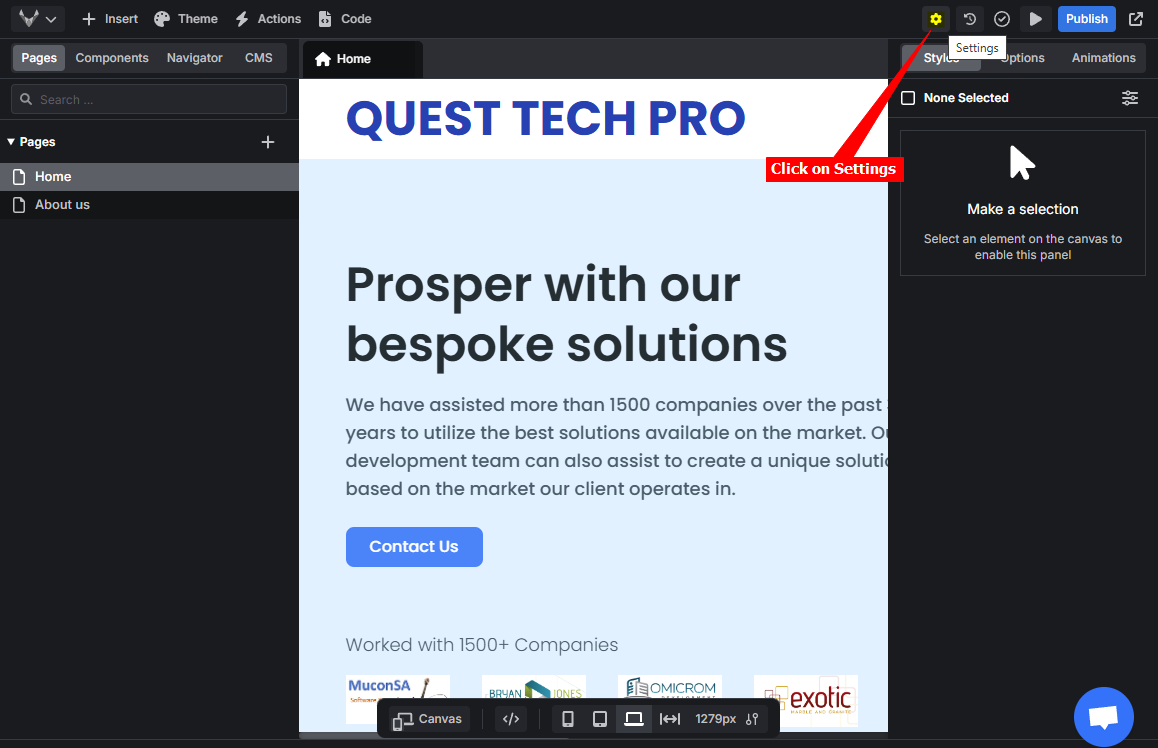
Versoly allows adding your code snippet per page as well as globally to all pages.
-
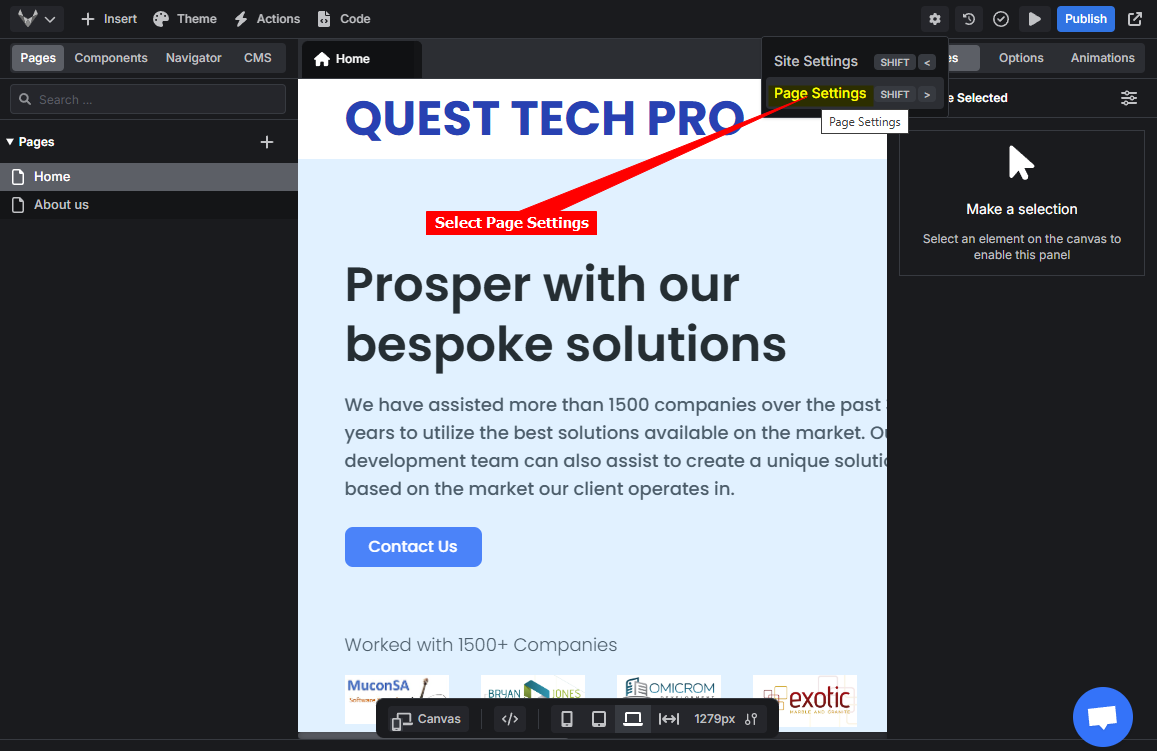
Select Page Settings
-
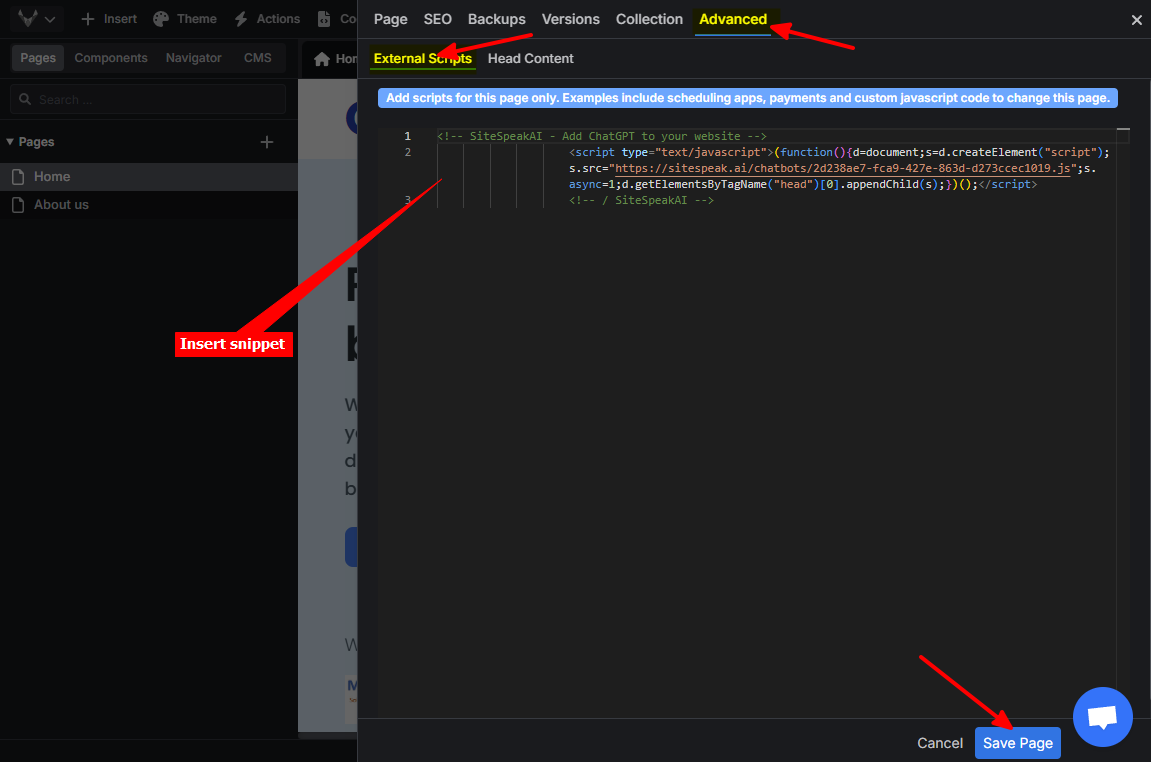
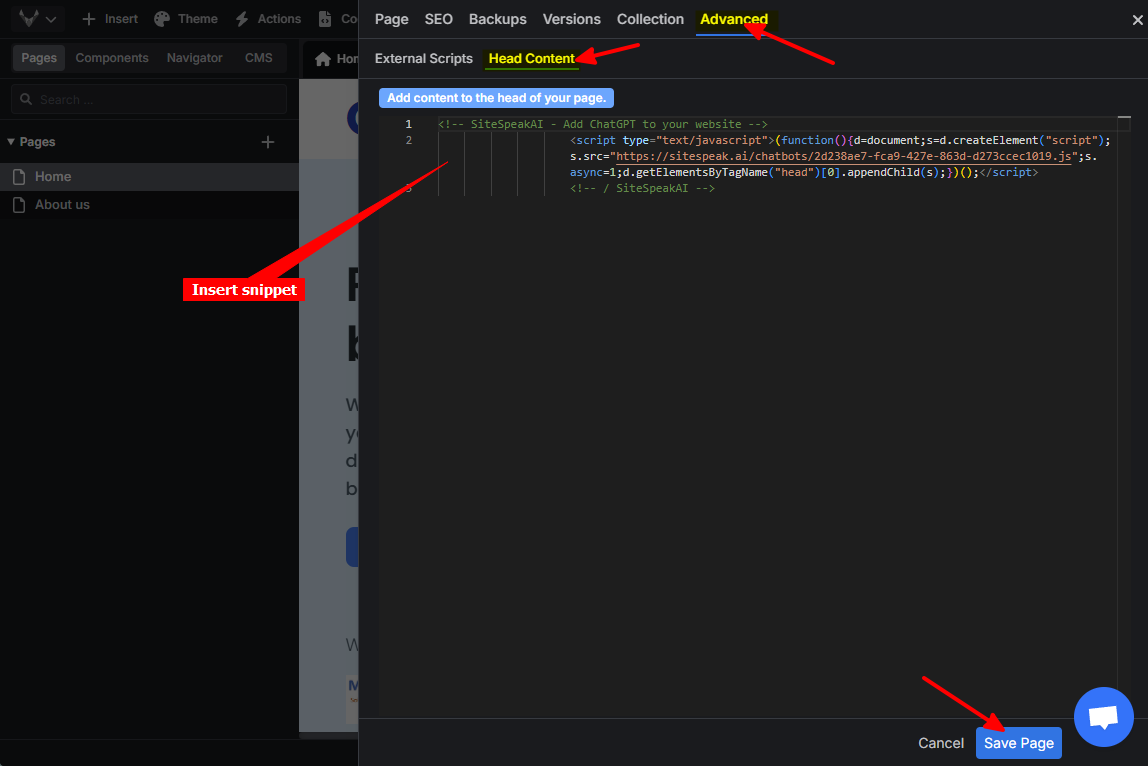
Select the Advanced tab, insert your snippet in either the External Scripts or the Head Content input text box and click on Save Page
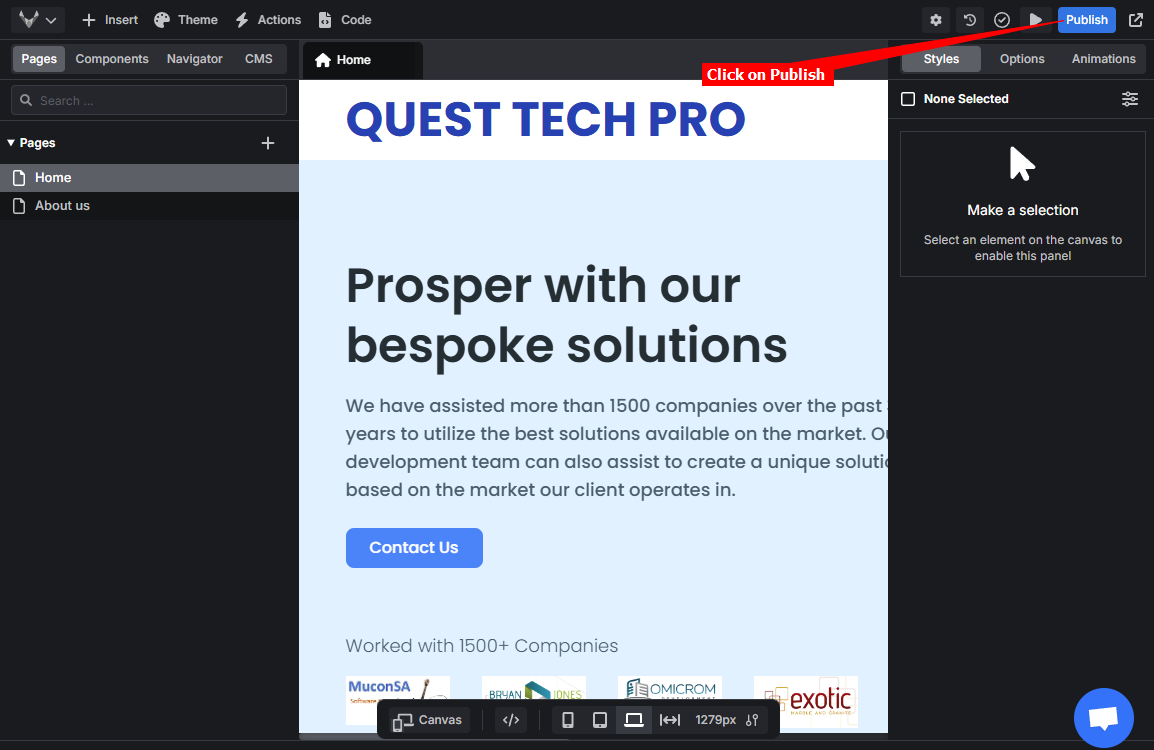
- Click on Publish
-
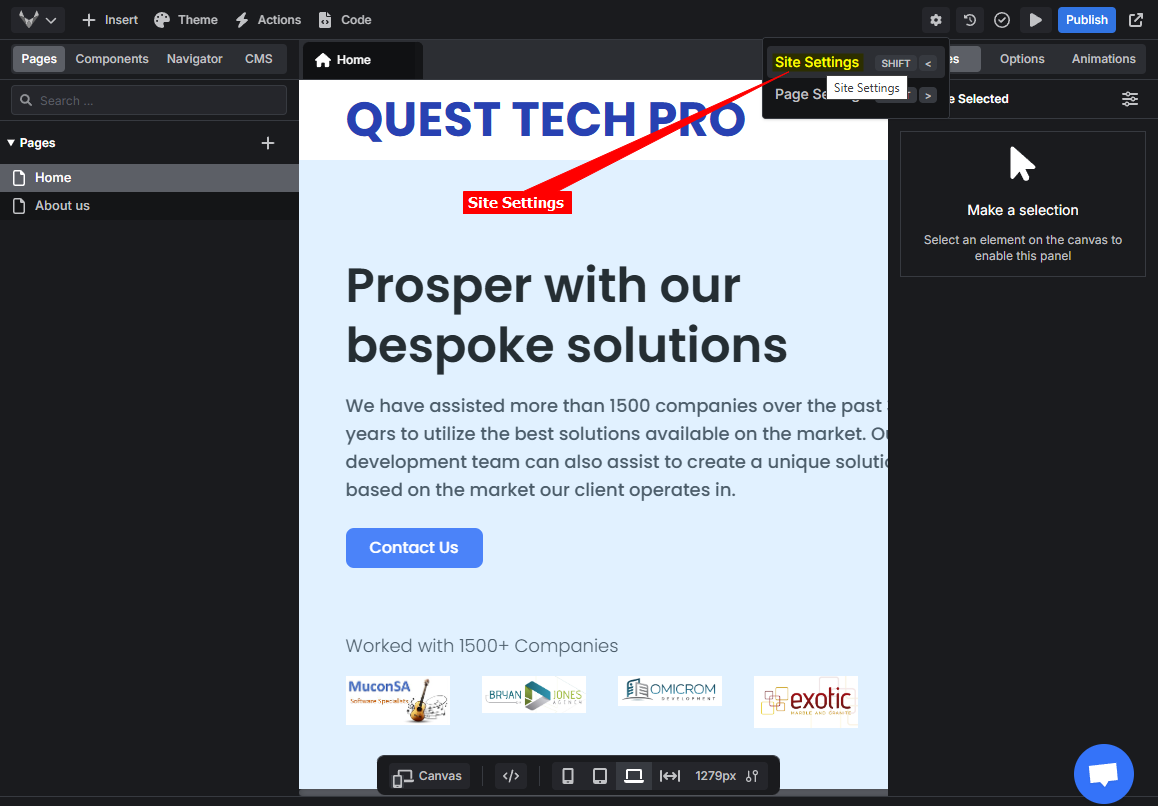
Click on Site Settings
-
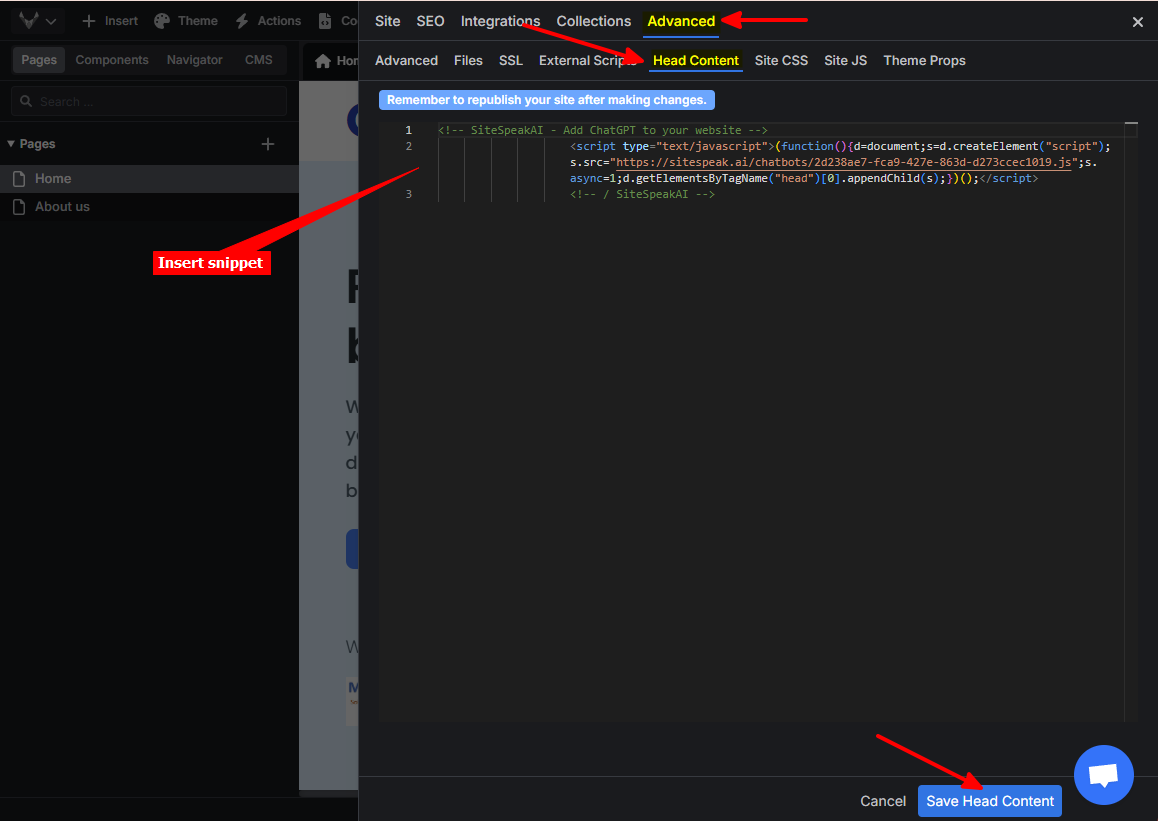
Select the Advanced tab, insert your snippet in either the External Scripts, the Head Content or the Site JS input text box and click on the Save button for the respective option
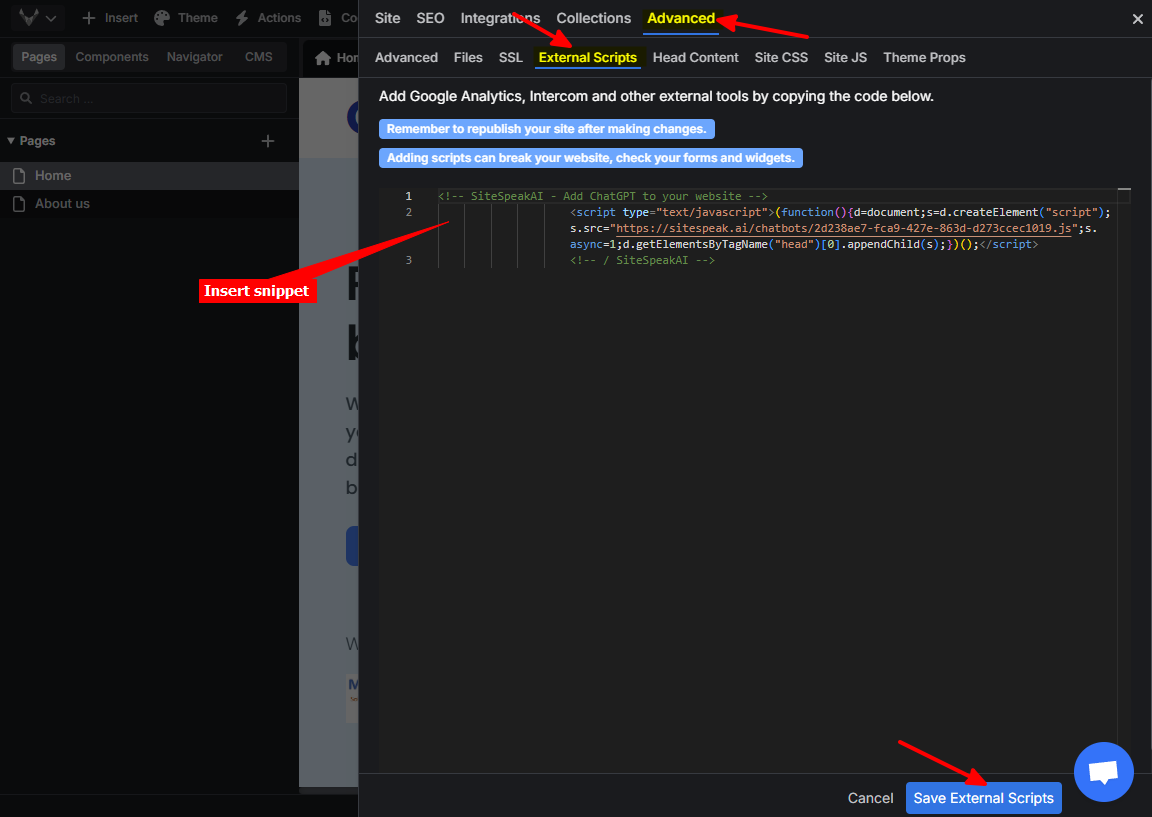
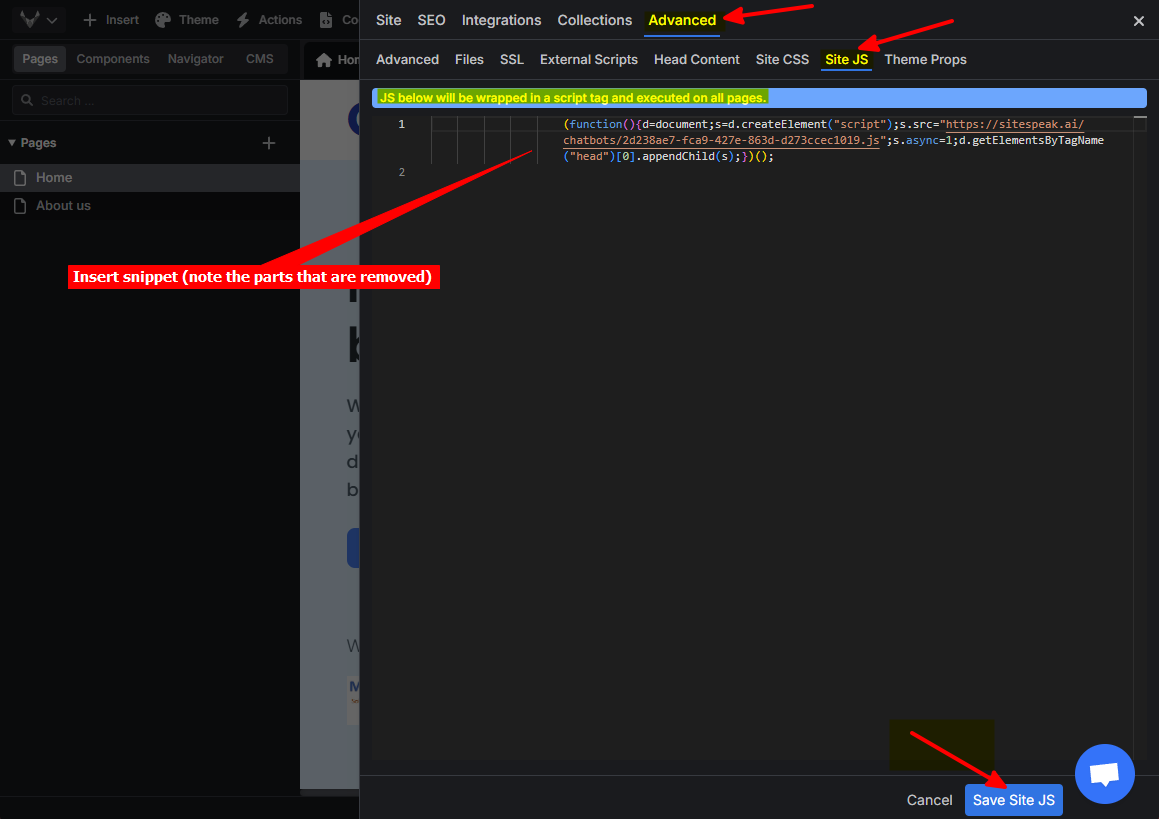
Please note that if you use the Site JS option, you must remove any HTML remark lines (
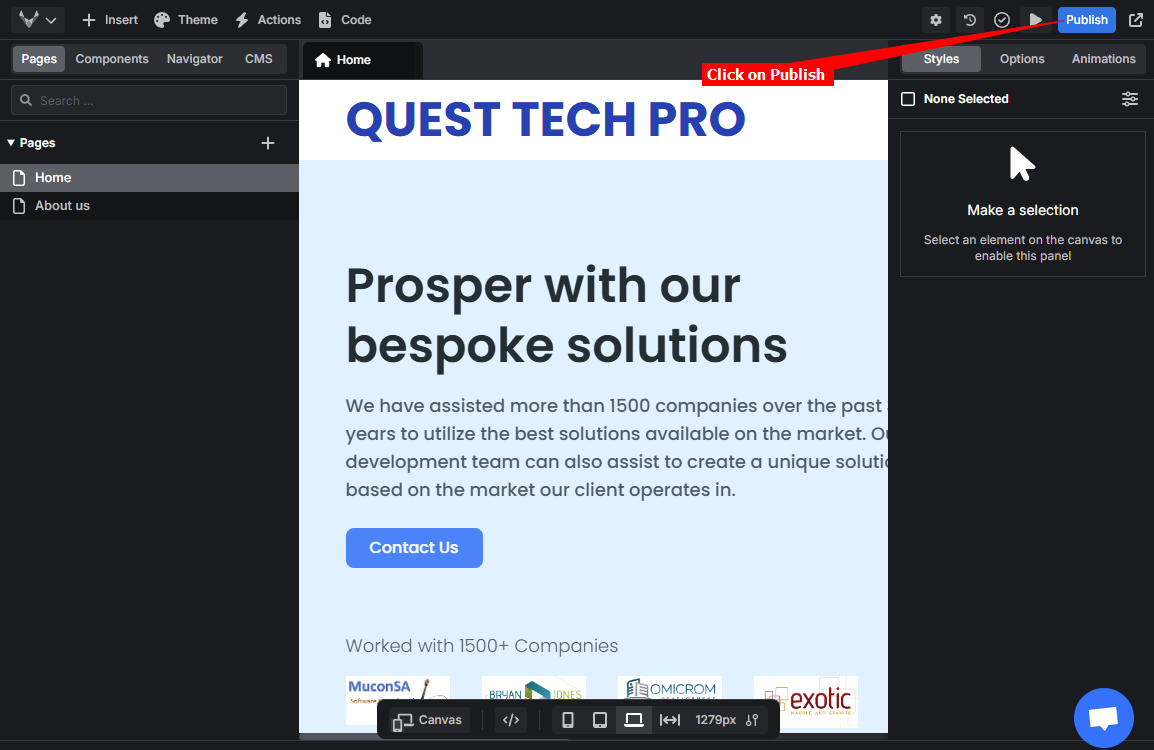
<!-- -->). You must also remove the script tags, Versoly adds its own script tags when it adds your snippet to the site pages.- Click on Publish
-
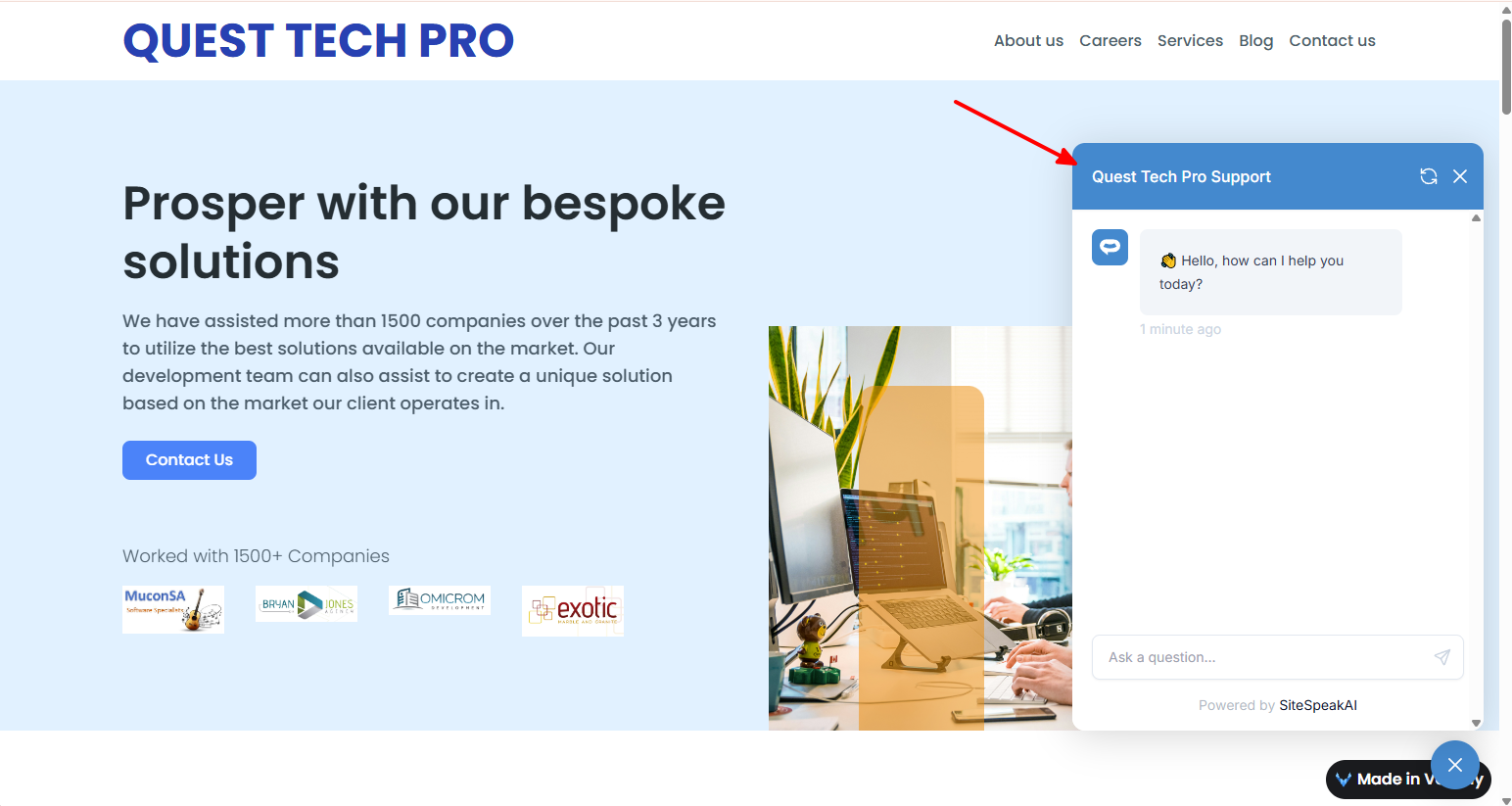
Your AI support agent button will now be displayed on your Versoly website page

-
If you click on the button it will display the AI support agent dialogue
Ready to automate your customer service with AI?
Join over 1000+ businesses, websites and startups automating their customer service and other tasks with a custom trained AI agent.